Pages

Wednesday, August 28, 2013

Salesforce Sandbox Organization ID


Do you aware when you refresh your Salesforce sandbox (Developer, Developer Pro, Partial, Full), the instance Organization Id will be changed? It mean, when we refresh a sandbox, Salesforce will create a new sandbox with new Organization Id. When we activate the refresh sandbox, old sandbox will be deleted.

The same for the instance name (cs1, cs2, etc...) in the refresh sandbox, you may get the same instance or different instance, it depends on when you refresh it, remember Sandbox preview window.

In previous blog, we discuss using $Organization.Id in validation rule to make sure the rule only run in production instance.

BUT, be aware that Salesforce will automatically change the value of Organization Id in Validation Rule and Workflow formula when you use $Organization.Id formula of production instance.

Formula example:
Website = '' && $Organization.Id = '00D90000000KY45'

In the new sandbox refresh or create, Salesforce will update all Validation Rules and Workflows in the new sandbox to:
Website = '' && $Organization.Id = '00D90000000OWqj'

This mean, you need to update $Organization.Id value in the validation rules and workflows with Production Org Id again if you plan to make the rule or workflows not work for sandbox.


ReferenceSandbox Setup Tips and Considerations.


Salesforce: Close Date and relation with Current Quarter

In some organizations, Sales Ops team need to control that Close Date for Closed Won opportunity, user should not able to enter any date or change it after Closed Won, because it will effect to forecast, report, and maybe commission.

Here are few use cases related to Close Date with Closed Won opportunity.

1. When user change Opportunity Stage to Closed Won, Close Date must be Current Quarter or after.
Use validation rule below. Of course, you can add exception to the rule not valid for particular profiles.

ISCHANGED(StageName) &&
TEXT(StageName) = "Closed Won" &&
IF (
( YEAR( CloseDate ) < YEAR( TODAY() )) ||
((YEAR( CloseDate ) = YEAR( TODAY() )) && (( MONTH( TODAY() ) >= 4) && ( MONTH( TODAY() ) <= 6) && ( MONTH( CloseDate ) < 4))) ||
((YEAR( CloseDate ) = YEAR( TODAY() )) && (( MONTH( TODAY() ) >= 7) && ( MONTH( TODAY() ) <= 9) && ( MONTH( CloseDate ) < 7))) ||
((YEAR( CloseDate ) = YEAR( TODAY() )) && (( MONTH( TODAY() ) >= 10) && ( MONTH( TODAY() ) <= 12) && ( MONTH( CloseDate ) < 10)))
, TRUE, FALSE)


2. Once the Opportunity has been update to Closed Won, user is not allowed to change the Stage OR change Close Date to different Quarter with stored Close Date.
Same as above, you can add expection to particular profiles.

(ISCHANGED ( StageName ) &&
ISPICKVAL (PRIORVALUE ( StageName ), "Closed Won"))
||
(ISPICKVAL (StageName, "Closed Won") &&
IF(
AND( MONTH(PRIORVALUE( CloseDate )) <= 3, MONTH( CloseDate )<=3, YEAR(PRIORVALUE( CloseDate )) = YEAR( CloseDate )), FALSE,
IF(
AND( MONTH(PRIORVALUE( CloseDate )) > 3, MONTH(PRIORVALUE( CloseDate )) <= 6, MONTH( CloseDate ) > 3, MONTH( CloseDate) <= 6, YEAR(PRIORVALUE( CloseDate )) = YEAR( CloseDate )), FALSE,
IF(
AND( MONTH(PRIORVALUE( CloseDate )) > 6, MONTH(PRIORVALUE( CloseDate )) <= 9, MONTH( CloseDate ) > 6, MONTH( CloseDate) <= 9, YEAR(PRIORVALUE( CloseDate )) = YEAR( CloseDate )), FALSE,
IF(
AND( MONTH(PRIORVALUE( CloseDate )) > 9, MONTH(PRIORVALUE( CloseDate )) <= 12, MONTH( CloseDate ) > 9, MONTH( CloseDate ) <= 12, YEAR(PRIORVALUE( CloseDate )) = YEAR( CloseDate )), FALSE,
TRUE)
)
)
)
)


3. Similar  with point 2, once the Opportunity has been update to Closed Won, user is not allowed to change the Stage OR change Previous Quarter Close Date OR change Close Date to Previous Quarter.

(ISCHANGED ( StageName ) && ISPICKVAL (PRIORVALUE ( StageName ), "Closed Won"))
||
(
TEXT(StageName) = "Closed Won" &&
IF(
AND(MONTH(Today()) <=3, CloseDate>=DATE(YEAR( today()),1,1), PRIORVALUE(CloseDate)>=DATE(YEAR( today()),1,1)), FALSE,
IF(
AND(MONTH(Today()) >3, MONTH(Today()) <=6, CloseDate>=DATE(YEAR( today()),4,1), PRIORVALUE(CloseDate)>=DATE(YEAR( today()),4,1)), FALSE,
IF(
AND(MONTH(Today()) >6, MONTH(Today()) <=9, CloseDate>=DATE(YEAR( today()),7,1), PRIORVALUE(CloseDate)>=DATE(YEAR( today()),7,1)), FALSE,
IF(
AND(MONTH(Today()) >9, MONTH(Today()) <=12, CloseDate>=DATE(YEAR( today()),10,1), PRIORVALUE(CloseDate)>=DATE(YEAR( today()),10,1)), FALSE,
TRUE))))
)

Monday, August 26, 2013

Salesforce: Activities Tab and View (Event or Task)

Question: do we have Activity tab in Salesforce? or Activity view in Salesforce?

The answer is YES, but not Out-of-the-box, you need to create it. Here are few options you can create Activity tab / view.

1. Custom Link
I just discuss on Custom Link in previous blog. So, you can create a new Custom Link and add it into Home Page Components then to Home Page Layout. remember you can create multiple Home Page Components with type = Links with different Links as the need. Create a new Custom Link:
- Set the Behavior = "Display in existing window without sidebar or header"
- Button or Link URL = https://xxx.salesforce.com/007  (change xxx to your Salesforce instance, e.g. na1 or ap1, etc)
So, instead of click tab, user need to click a link in left sidebar. Using this option will save you 1 tab usage, unless you are on Unlimited Edition or Performace Edition, you only can create maximum of  25 tabs for Enterprise, 10 tabs for Professional and 5 tabs for Group Edition.

Note:
  • You can enable "Show Custom Sidebar Components on All Pages" from Setup - Customize - User Interface to enable each tab showing the same sidebar component.
  • You can use https://xxx.salesforce.com/00T as well, this will show view without New Event button or https://xxx.salesforce.com/00U for view without both New Event and New Task button.


2. Web Tab
You can create Web Tab from Setup - Create - Tabs, Scroll to Web Tabs related list and click New button
URL = https://xxx.salesforce.com/007
But, there is NO option to hide header, so you will see double Salesforce header, this is not a good option, and we need to avoid this option actually.


3. Visualforce Tab
Same with option 2 above, but we need to create a very simple visualforce page (don't be afraid if you are not a Salesforce developer, just copy scripts from below). Go to Setup - Develop - Pages, click New button, enter the label and name, then copy and paste script below and click Save button.
<apex:page >
<apex:enhancedList type="Activity" height="600" />
</apex:page>
Then go to Setup - Create - Tabs, scroll to Visualforce Tabs related list and click New button, select visualforce page just created in dropdown list to create a tab for Activity.

Note: you need to enable Visualforce page to all Profiles will use this tab or add in Permission Sets for particular users. This will also count to 1 usage of Custom Tab.


If you notice, using visualforce page, you will not see Calendar buttons above Activities view, it only appears when direct access to URL https://xxx.salesforce.com/007 (example: using custom link)


Using both options, you can create and edit View the same as other objects view usage.

Thursday, August 22, 2013

Salesforce: Custom Links in Home

If you are looking at Salesforce Setup menu, there is a sub menu under Home called Custom Links.


When you click that menu, you can add or edit existing custom links. You need to select content source of custom links from: URL, Custom S-Control (depreciated), onclick Javascript or Visualforce page.

If you create new custom link, once done, click Save button and it will show you a message "The new custom link will not be displayed to users until you create a custom links component and then add that component to a home page layout."

What is above this message mean?
1. Go to Home Page Components in Home setup menu.
Click New button, select Type = Links, and give a name, example: Johan's Custom Link. You should see the custom link label just added, select it and click "Add" arrow button.


2. Go to Home Page Layouts in Home setup menu.
Select any layout needed, click Edit button and tick component you just added in Narrow Components to Show, then arrange the order.


3. How it will be shown in Salesforce?
Click Home tab. You should see a component of custom links.


Summary: by using Custom Links in Home within a component, you can add many useful links for your Salesforce users if the links do not need to be a tab.

Monday, August 19, 2013

Salesforce: Lookup Filter

Lookup relationship is one of the best feature in Salesforce, you can easily link one object to other object. Furthermore, you can create filter in lookup field using Lookup Filters.

Lookup Filters are administrator settings on lookup, master-detail, and hierarchical relationship fields that restrict the valid values and lookup dialog results for the field.

As of now, Salesforce supports lookup filters on relationship fields that point to:
  • Accounts
  • Assets
  • Contacts
  • Entitlements
  • Quotes
  • Service contracts
  • Users
  • Custom objects

For example, you can define a lookup filter on opportunities that points to accounts, but not vice-versa.
In coming Spring '14, Salesforce add support for lookup filters on relationship fields that point to the following objects: Campaigns, Cases, Contracts, Ideas, Leads, Opportunities, Products, and Social Personas. Also added a Related Lookup Filters node to all newly supported objects in Setup menu.

Sample: User would like to see Contact only from same selected Account in the Opportunity.
You can easily using Lookup Filter to achieve this. Add Filter Criteria, Filter Type, Lookup Window Text and option to Active the filter.


If you edit page layout, you will see Contact here will depend on Account.


Here is screenshot when user click Edit in page detail, see Account name, when Account change, Contact will become not valid and user have to select Contact from new Account selected.


Related Lookup Filters
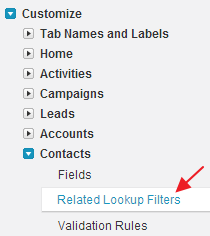
You can easily identify if an object is filtered by other object. In sample above, Contact is filtered in Opportunity object. Instead go to Opportunity field or any other object one-by-one, you can check all in Contact object Related Lookup Filters; go to Setup - Customize - Contacts - Related Lookup Filters


Thursday, August 15, 2013

Salesforce: How to Make Validation Rule only effect for Production Instance

Background: how to make certain Validation Rule only effect for Production instance, but not in sandbox instances?

Solution:
1. Deactivate the validation rule in sandbox
This is very basic and simple solution, it works, but not really nice if you have many validation rules need to deactivate in sandbox, admin need to deactivate each validation rule in all objects.
Also, when sandbox refresh, admin need to re-deactivate all validations rule again.

2. Modify the validation rule only work in Production instance
Step 1. Get your Salesforce Production Organization Id
Go to Setup - Administration Setup - Company Profile - Company Information
Look for Salesforce.com Organization ID


Step 2. Add Organization ID into validation rule
Example, your current Validation Rule error formula:
Type__c = "A" & Amount < 1000
Modify this to:
Type__c = "A" && Amount < 1000 && $Organization.Id='00D300000000SHq'

Done, but see this blog that Salesforce will automatically change the value of Organization Id in Validation Rule and Workflow formula when you use $Organization.Id formula of production instance.

Page-level ad