Pages

Showing posts with label Files. Show all posts

Tuesday, May 6, 2025

Salesforce: Upload Files to a Record

As shared in the Files sharing Query blog, a file can be shared with users, groups, records, and the content library. 

Let's see how the system works when uploading a file from a record related list.

By default, when a file is loaded from a record, the user who uploaded the file becomes the File Owner, and the record owner has extra permissions compared to other users; this applies when default file access is set to Set by Record, check this article.

File owner:


Record owner:

Users with edit access to the record <-- similar to the record owner

Users without edit access to the record:

Users with permission "Modify ALL records" or "Modify ALL data" <-- similar to file owner

Additionally, users with "Create Public Links" permission

The user will be able to share the file externally with an expiration date and a password:


Who Can Access?
Click the Share dropdown from the Files related list, and you can see "who can access"? Remember the  "Set by Record" mentioned earlier, and the ShareType in Query is "I", not "V".

Let's see it in a query:
SELECT Id, ShareType, ContentDocumentId, ContentDocument.Title, LinkedEntity.Name, LinkedEntity.Type FROM ContentDocumentLink WHERE ContentDocumentId = '069VZ000006928nYAA'


Share the file with another user as a Collaborator manually: 


Share the file with a Library
What happened when we shared the file with a library? 

Notice that the share type for the record and the user who shared earlier has changed to Viewer. When a file is added to a library, it means that access to the file follows access to the library; this setting can’t be changed. You can't manually re-share the file to the user as a Collaborator. You also can't remove the file from the Library. Vote for this idea. But, if you have a folder in a library, you can move the file within the library and the subfolder.


Reference:


Monday, February 21, 2022

Salesforce: File Privacy on Records

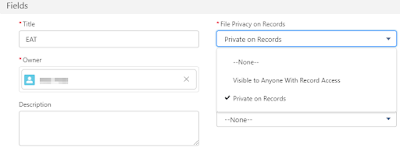
By default, when you upload files from a record Related List, the file will be visible to all users who have access to the record. But, this can be changed by adding a field called File Privacy on Records in the Content Version page layout.


Once the file owner selects that checkbox, the file will not visible to other users, unless manually shared, but users with View All Data permission will be able to see those files.

Step to update the checkbox:
1. Upload the files from Related List, you can upload multiple files in one go

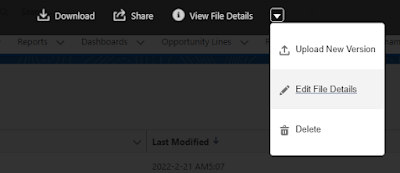
2. Open each file and click the arrow next to View File Details, then select Edit File Details

3. Change File Privacy on Records from Visible to Anyone with Record Access to Private on Records

Notes:
  • The file visibility does not roll up to users in the higher role hierarchy, so when the file owner sets this as Private on Records, the manager will not see the file, unless shared manually.
  • The file visibility does not depend on the related record owner but depends on the file owner.
  • If you query on ContentDocument object (prefix: 069), this is stored in SharingPrivacy field, P for Private on Records, and N for the default visible to anyone

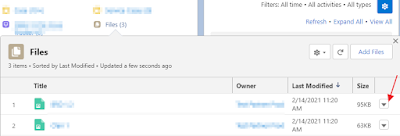
However, if you click the Edit File Details link from the Files dropdown in a related list, you will not see that checkbox, as mentioned in this article. I have created an idea exchange to vote.


Reference:


Thursday, May 31, 2018

Salesforce: Files sharing Query

More than 3 years ago, I wrote a blog Content Architecture sharing how to query. This blog will be a continuation of how to query the File sharing to whom or what, and the level of visibility.

There is an object called ContentDocumentLink (with prefix 06A), this object is a child of ContentDocument (prefix 069). This object represents the link between a Salesforce CRM Content document or Salesforce file and where it's shared. 

A content (069) can be shared with a LinkedEntityId, which can be users (005), groups (00G), records, such as Task, Contact, Opportunity, etc., and Salesforce CRM Content libraries (058). This object is available in version 21.0 and later for Salesforce CRM Content documents and Salesforce Files.

To query this object, it must be filtered on one of Id, ContentDocumentId, or LinkedEntityId. Let's see some samples:
SELECT Id, ContentDocumentId, LinkedEntityId FROM ContentDocumentLink 
This query will throw an error because of not filtering on anything.
MALFORMED_QUERY: Implementation restriction: ContentDocumentLink requires filtering by a single ID on ContentDocumentId or LinkedEntityId using the equals operator or multiple IDs using the IN operator.

In API versions 59.0 and later, enable the Query All Files permission to query without a filter on Id, LinkedEntityId, and DocumentID fields. The View All Data permission is required to enable Query All Files.


To query for a file share to
SELECT Id, ShareType, ContentDocumentId, ContentDocument.Title, LinkedEntityId, LinkedEntity.Name, LinkedEntity.Type FROM ContentDocumentLink WHERE ContentDocumentId = '06990000003U0UyAAK' 


To query all files shared with a record
SELECT Id, ShareType, ContentDocumentId, ContentDocument.Title, ContentDocument.CreatedDate, LinkedEntity.Name FROM ContentDocumentLink WHERE LinkedEntityId = '0010o00002CggryAAB' 


To query all files shared with an object
SELECT Id, ContentDocumentId, ContentDocument.Title, LinkedEntityId FROM ContentDocumentLink WHERE LinkedEntityId IN (SELECT Id FROM Account)


To query all files shared
SELECT Id, ContentDocumentId, ContentDocument.Title, LinkedEntityId, LinkedEntity.Name, LinkedEntity.Type, ShareType, Visibility FROM ContentDocumentLink WHERE ContentDocumentId in (SELECT ID from ContentDocument)


Reference: 

Wednesday, September 27, 2017

Salesforce: Files Visibility and Actions

We shared about Files Sync in the previous blog, where we can have two-ways sync from Salesforce with desktop computers, also ability to "create" folder structure from desktop computers which will be synchronized to Salesforce.

Next question, once I have my file in Salesforce, who can see my Files? Only me? Or someone else in the company will able to see my files?.

Your files in Salesforce can be private to you, privately shared, or visible to your entire company.
Sharing SettingDefinitionWhen Does a File Have This Setting?
Private PrivateThe file is private. It hasn't been shared with anyone else besides the owner. The file owner and users with “Modify All Data” permission can find and view this file. However, if the file is in a private library, only the file owner has access to it.A file is private when you:
  • Upload it in Files home
  • Publish it to your private library
  • Sync a file in your Salesforce Files Sync folder
  • Stop sharing it with everyone (Make Private)
  • Delete posts that include the file and the file isn't shared anywhere else
Privately Shared Privately SharedThe file has only been shared with specific people, groups, or via link. It's not available to all users in your company. Only the file owner, users with “Modify All Data” or “View all Data” permission, and specific file viewers can find and view this file.A file is privately shared when it's:
  • Only shared with specific people or a private group
  • Posted to a private group
  • Shared via link
  • Posted to a feed on a record
  • Published to a shared library
Company-wide Your CompanyAll users in your company can find and view this file.A file is shared with your company when it's posted to a feed that all users can see, a profile, a record, or a public group.

When a file sharing is private, only the file owner (the one who upload the file) and users with Modify All Data permission (this includes your System Administrators) will able to see the file, but not for users with View All Data permission. However, for Privately Shared files, users with "View all Data" permission will be able to see it.

Here actions user can do with the file by file owner, collaborator and viewer:
ActionFile OwnerFile CollaboratorFile Viewer
View or PreviewYesYesYes
DownloadYesYesYes
ShareYesYesYes
Attach a File to a PostYesYesYes
Sync a FileYesYesYes
Upload New VersionYesYes
Edit DetailsYesYes
Change PermissionYesYes
Make a File PrivateYes
Restrict AccessYes
DeleteYes


Make file Private
When you have a file has been shared with many people or groups, you can "restore" it back as private by clicking "Make Private" link from Sharing Settings (unfortunately until Summer '17 release, this only available in Classic, and not in Lightning)


Prevent others from sharing and unsharing
You have files shared to other user or group, Salesforce offers a function not to allow other users to share it. There is a box in file sharing setting called "Prevent others from sharing and unsharing", tick this box to enable it.


Let's see from user experience when accessing the files shared with them, the first one is the default where they are allowed to share with other users, and the second screenshot when the file owner enable the option not allowed to share:

this is normal file shared to another user (2nd file)

when the owner makes the file not shareable (1st file)


File Privacy on Records
Before Winter '18 release, all files on records in Lightning Experience were visible to everyone with access to the record. Winter '18 release introduces "File Privacy on Records" option, when the option selected is "Private on Records" in Lightning Experience and communities, the file will be not visible to all user able to access the record, it will be behavior as Private sharing file.

Only file owners and administrators have the power to change the value of File Privacy on Records.
A file marked as private in Lightning Experience is also private in Salesforce Classic. Admin needs to add File Privacy on Records field into Content Version object page layout in the Setup menu.


Reference:


Tuesday, September 26, 2017

Salesforce: Files Sync

Salesforce Files Sync lets you store your documents in the cloud and access them from any device: your computer, laptop, phone or iPad. You'll never again have to wonder where you left the current version - anywhere you access the file it will be up to date!

Files Sync is a desktop agent to sync files and folders from your computer with Salesforce Files. This is pretty similar to other providers such as Dropbox, Microsoft OneDrive, Box, and etc, where you can sync files and access it from anywhere, any devices, but also from Salesforce.

Here are few benefits using Files Sync:
- The files are stored in Salesforce platform
- The files are accessible from Salesforce1 mobile, and computers with sync agent installed
- No additional cost, it comes along with your Salesforce license
- 10 GB storage for each user
- Create folder and subfolders from desktop (computer)
- You can choose files in Salesforce to be synced, so not all Files will be synced by default.

I have a unique case, this company is blocking file hosting service, including their sync agent software, such as Dropbox, OneDrive and etc. However, Salesforce is a legitimate application used by the company, so Files Sync is the only one will work for syncing files.


Here are few steps to configure Files Sync:

1. Enable Files Sync
From Setup | Feature Settings | Salesforce Files | General Settings, select Enable Files Sync.


Once this enabled, you should see Sync Files permission under Profile or Permission Set.


2. Grant Users Access
The Sync Files permission need to assign to users, this can be done through Profile or Permission Set.


3. Install Salesforce Files Sync
The user needs to install Files Sync agent to their computer. Download the installer from personal settings, enter Files Sync in the Quick Find box, then select Salesforce Files Sync. Available for both Windows and Mac OS X.


Follow the installation instructions for your operating system, then log in with your Salesforce credentials.


4. File Upload and Download Security (Optional)
From Setup, enter File Upload and Download Security in the Quick Find box, then select File Upload and Download Security.

This is to control how various file types are handled during upload and download. Select Don't allow HTML uploads as attachments or document records" to prevent users from uploading files that can pose a security risk.


Notes:
1. When the user has Sync Files permission enabled and desktop agent installed and log in, she or he will see additional column Sync in Classic, this is not available yet in Lightning (Summer '17 release).

before

after


2. Additional "Synced" menu is added to the menu under Files tab.


3. The user can sync file from Salesforce by clicking sync icon next to the file, this is not available yet in Lightning (Summer '17 release).


4. When sync agent in the desktop is working properly, the icon in taskbar should be the blue-white cloud with checked. If it is in blue-black cloud, something is wrong, either the user does not have permission for Files Sync, or the Org. has not been enabled for Files Sync. Right-click the icon and select "Sync Status..." for more information.

working properly 

something wrong


5. When you overwrite the file in a computer which syncs to Salesforce, the file version history is maintained by Salesforce, you can retrieve the older versions from Content details page.


Reference:


Page-level ad