Pages

Showing posts with label Report. Show all posts

Friday, May 9, 2025

Salesforce: Retrieve Report Metadata (2)

In a previous blog, we discussed how to use package.xml in Workbench to retrieve report metadata. However, if we simply need to retrieve the report metadata, e.g., to understand the object of a field added to the report, we can simply use REST Explorer in Workbench.

Use GET method /services/data/v62.0/analytics/reports/00OGB00000Dt9Qv2AJ

Change the highlighted ID above to the report ID you want to analyze.


A few items to note from the above data:

  • factMap > T|T > aggregates - number of rows of the report
  • factMap > T|T > rows - the cell value of each row
  • reportMetadata > detailColumns - API field name for each column in the report, including the object name and whether it is a lookup field in the report type
  • reportMetadata > reportType - the report type used for the report

The same result (in XML format) you can get using REST Explore from Salesforce Inspector Reloaded.


Salesforce: Custom Report Type Metadata

The Spring '25 release enhanced the Custom Report Types user experience on the setup page; "Enhanced Custom Report Type Setup Page" in the "Reports and Dashboards Settings" should be enabled in the setup menu, which should be turned on by default; otherwise, your Salesforce admin needs to enable it.

The Custom Report Type is stored as metadata, which we shared here. How can I retrieve the Custom Report Type metadata without an IDE? You need to use a tool that supports REST Explorer:


1. Workbench

  • Go to Salesforce Workbench.
  • Log in with your Salesforce credentials.
  • Navigate to Utilities > REST Explorer.
  • Use the REST API endpoint mentioned above to retrieve report metadata.
Use the GET method, for example: 
/services/data/v62.0/analytics/report-types/Account_custom__c

You can get the report type API Name from the Custom Report Type user interface in the setup menu, and add a suffix of __c.


2. Salesforce Inspector Reloaded
/services/data/vXX.0/analytics/report-types/Account_custom__c


Monday, August 14, 2023

Salesforce: Report Inline Editing Limitation and Issue

Report Inline Editing is a great feature where users are able to edit the data (multi fields and multi rows) easily via report. The same thing can be done via list view, but more flexible than list view:

  • Not all users able to create/edit public list view
  • Need to add record type as a filter in list view if the object has multiple record type
  • List view inline editing does not support controlling or dependent picklists

So, the report is a perfect option to cover the above issues. Report inline editing also honors the user has the right permissions to edit the data, only when these conditions are met for Object Permissions, Field Level Security, and Page Layout.

  • Users have edit access to the associated object.
  • Users have edit access to the associated field.
  • The associated field is included and editable in the page layout assigned to the user profile.


However, not all fields are supported by report inline editing, e.g. Opportunity Amount, for complete reference, check out this article Updating Multiple Fields Inline on the Report Run Page in Lightning Experience.

As always, nothing is perfect in this world and Salesforce's great community has put some ideas to make this feature better:


Issues

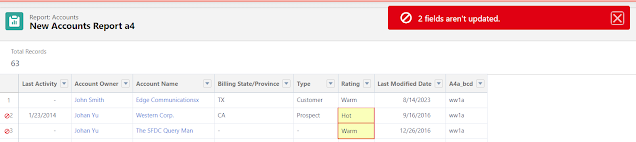
There is a minor issue related to data validation, e.g. you add a validation rule to maintain a business rule, however, if the system is unable to edit the record because of that rule, the system does not show clearly what is the cause of the error.


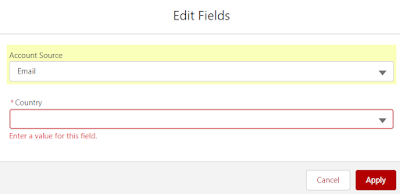
Another issue related to this Report Inline Editing: Dependent Field Requirement Should Match Record Pages (90 points), in summary, if the dependent field is marked as mandatory in page layout, however, no values of the dependent field are assigned to a value in the controlling field, inline report editing still requires the user to select a value, although no value is available in the dropdown too.


Reference:


Sunday, May 15, 2022

Salesforce: Case Team Report

We shared Account Team Report and Opportunity Team Report a few years back, in this blog, we will look into the Case Team Report.

Similar to the Account and Opportunity report, you can filter Case based on the owner too, here are the options:


Let us go through each of them:

My cases: ONLY cases that are assigned to you.

All cases: ALL cases that you have access to, no matter who is the case owner.

User owned cases: ALL cases that you have access to, and are owned by a user, not a queue.

Queue owned cases: ALL cases that you have access to, and are owned by a queue, not a user.

My case team's cases: These are cases where you are added as a Case Team member.


My role-based team's cases: These are cases owned by you and your subordinates in the role hierarchy, but not owned by a queue, although you or your subordinate is a member of the queue.


Reference:


Friday, May 13, 2022

Salesforce: File and Content Report Type / Query All Files

File and Content report type produce a report of Salesforce CRM Content and Files in Salesforce. When you create a new report using the File and Content report type, a lot of fields will be added by default.

When you run the report with standard fields, you may see no result, this is because the data, instead of showing as blank, this report type will just remove the rows altogether, such as Downloaded By, if the files have never been downloaded, the files will not appear as a row in the report. The same behavior for fields such as Link Name, if the link for the file has not been created.

On the other hand, if the file has been uploaded in multiple versions, the same file name will appear in a few rows based on the number of file versions uploaded, if you add the File Version field to the report.


This report will show files that you owned and shared with you, even if you are a system admin or user with View All Data permission, and selects Show Me All Files in the filter.


Query All Files

There is permission called Query All Files, this permission is not enabled by default for the System admin profile, it allows users with View All Data permission can query ContentDocument and ContentVersion and retrieve all files in the org, including files in non-member libraries and files in the unlisted groups, and not just files that are owned or shared to the user. 

However, this permission does not impact to result of the report using the File and Content report type, even if the user has Query All Files permission.


Reference:


Thursday, April 21, 2022

Salesforce: Case Lifecycle report type

Case Lifecycle report is a standard Salesforce report type provided, but probably the one that is not so famous, not many people use, a bit confusing and very less official article about this.

What is the Case Lifecycle report?
Run case lifecycle reports to view the results of the Range field, which indicates the length of time since the case last changed status or owner. Each time the status or owner changes, the counter begins again at zero --- copy from Using Custom Report Types to Report on Support Activity.

Here are a few in the trailblazer community throughout the years:

Ideas related to this in IdeaExchange:
From all the above documents and conversations that can be found using Google search, nothing really explained how the Case Lifecycle report works?


What is the Case Lifecycle report?
It is a standard report type that tracks the duration of a case when the case owner or status is changed.

There are 5 fields available in the Case Lifecycle report:
  • Case History Owner
  • Case History Status
  • Case History Last Modified By
  • Case History Last Modified Date
  • Duration

Let us walk through this report type with samples:

1. New Case Creation
Remember, every time the case owner or status is changed, a new entry will be created for the case lifecycle report, so creating a new case will generate a new entry for the lifecycle report.

The below report uses using minutes unit.


After 2 minutes, let us refresh the report; both the duration and age increase by 2 minutes


2. Change the Case owner
As mentioned earlier, changing the case owner will create a new entry to the lifecycle report.


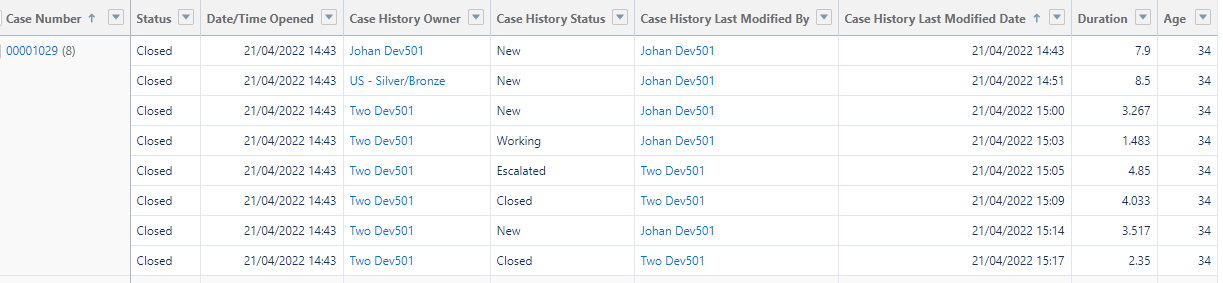
- 1st row: duration at 7.9 minutes, the case owned by 'Johan Dev501' for 7.9 minutes, before hand over to the new owner.
- 2nd row: duration at 1.083 minutes, the latest duration since it was assigned to a new owner and it has been held for 1.083 minutes  

Let us refresh the report without changing anything on the case


- 1st row: no change, this is completed, the duration will no longer be changed
- 2nd row: now the duration changed to 5.1 seconds
 

3. Change the Case owner
Changing the case owner will create a new entry to the lifecycle report.


- 2nd row: this is completed; the duration will no longer be changed
- 3rd row: the duration start for the new owner


4. Change Status
Changing the case status will create a new entry to the lifecycle report.


- Case History Last Modified By, show who changed the status or owner
- Case History Last Modified Date, show when does the change happen 
- Case History Owner, show the owner when the entry is created 
- Case History Status, show the status when the entry is created
- Notice that Age keeps counting from the beginning; this is because the case is still open


5. Closing the case
Changing the case status will create a new entry to the lifecycle report.


Let us refresh the report without changing anything on the case

- Notice that the age stops at 26 minutes because the case has been closed
- But, the duration on the last entry keeps counting, no matter the case status  


6. Re-open the case
Changing the case status will create a new entry to the lifecycle report.


- Age recalculate again from the beginning
- Duration of the initial Closed entry stopped at 4.033 minutes


7. Re-closing the case


After a few minutes, hours, or days, refreshing the report will not change anything, except the duration for the last items, which will keep counting.


Can this report type be customized? 
Can we use a custom field instead of standard status and owner? Unfortunately, not; see the above list of idea exchanges. Can we track only the owner or status? Unfortunately, also not.

Can we get the data with SOQL? 
The closest we can get is by query to the CaseHistory object but the result will not have duration and age. 
SELECT Id, CaseId, CreatedBy.Name, CreatedDate, Field, OldValue, NewValue FROM CaseHistory WHERE CaseId = '5000I00002FBKqF' AND Field IN ('Owner','Status') ORDER BY CreatedDate


Note: The owner will show double, as ID and Name, so you just need to get one as needed.
For the owner with Name, the DataType field = Text, while for the owner with Id, the DataType field = EntityId


If you have anything to add for the Case Lifecycle report type, please comment on this blog.


Wednesday, April 13, 2022

Salesforce: Subscribe Report

Almost 5 years ago, I wrote about Subscribe report in Classic and Lightning, but now in 2022, everyone has migrated to Classic (or at least 90%). 

Here are a few items related to Subscribe report:

1. As of Spring 22, the max report to subscribe is 7

Check out this idea exchange, but if someone adds you as a recipient for a report subscription, it does not count for the limit.


2. Add other users to receive the report

The report must be not stored in the Private Reports folder, and the recipient must have access to the report folder.


3. Find all reports that you subscribed to

All reports that you subscribed to will have a checkmark in the Subscribed column (Pro tip: you can sort by this column too). But, if you are added by someone, there will be no checkmark on that column. 


You will see in the email user who adds you subscribe to the report.


4. You can set the Run Report As someone else or as yourself

If there are many people added as recipients, the report will run as a user, whether the one subscribes to the report or a recipient. But what does this mean? 

  • Everyone will receive the same report result
  • No matter each user's access to the report, it will be based on the visibility of the user set as the run report
  • If the report is filtered with date, the data will be based on the time zone of the running user set in SFDC, e.g. created date = 1-Jan-2022 and running user timezone is Singapore, the user sees 200 records when running the report, the same number of records will be delivered in email for all users, but other users where timezone set to EST run the same report, that user may see 201 or 199 records, this is because based on that user timezone. SOQL sample: SELECT Id, Name, CreatedDate FROM Opportunity WHERE CreatedDate >= 2022-04-12T00:00:00+08:00 AND CreatedDate < 2022-04-13T00:00:00+08:00 ORDER BY CreatedDate

Bonus: Standard fields with type = date/time, such as Created Date and Last Modified Date will only show the date portion without time information, but if you sort the report based on this field (ascending or descending), the sort order will include time information, even all date is the same.


Friday, December 17, 2021

Salesforce: Retrieve Report Metadata

Here is the use case, you are presented with a report with duplicate fields label, whether from the same object or different objects, but how can you easily identify each field? See a sample from the below screenshot, there is no way to tell which Created By and Created Name are from which object.


Even by editing the report, it will not tell you, of course, you can remove and add the fields back, but you are supposed not to change the report.


The answer is to check the metadata of that report, unfortunately, Salesforce does not offer to get this without using tools, such as VS Code or other IDE. But, we can use Workbench to retrieve it.

You can follow this blog to prepare the package.xml file, and retrieve the metadata using Workbench.

1. Get the "fullName"


The report should not be stored in the Private Reports folder, otherwise, you will not see the report here.

2. Prepare XML file

Copy the following XML and save it as a file called "package.xml"

<?xml version="1.0" encoding="UTF-8"?>
<Package xmlns="http://soap.sforce.com/2006/04/metadata">
    <types>
        <members>Johan_Change/Opty_and_Acct</members>
        <members>A_folder/Opportunity_by_Stage</members>    
        <name>Report</name>
    </types>
    <version>53.0</version>
</Package>

If you would like to retrieve metadata from multiple reports, you can add them to the XML file.

What is this mean <members>Johan_Change/Opty_and_Acct</members>

Text in red is the report folder API name, you can get the report folder API name from Folder Unique Name from rename folder. While the blue text is the report API name, you can get the report API name from the Report Unique Name in the report properties.

If the folder is Public Reports, use unfiled$public as the report API folder name in the Package.XML file, also you will not see that folder in Workbench step (1).


3. Retrieve Package

Open workbench:
  • select migration | Retrieve
  • select the XML file prepared in step 2
  • select "Single Package"
  • click the Next button then click the Retrieve button
  • when done, click the "Download ZIP File" link
  • extract the zip file and looks for the report
  • open the file with any text editor

<?xml version="1.0" encoding="UTF-8"?>
<Report xmlns="http://soap.sforce.com/2006/04/metadata">
    <columns>
        <field>Opportunity$Name</field>
    </columns>
    <columns>
        <field>Opportunity$Account</field>
    </columns>
    <columns>
        <field>Opportunity$CreatedBy</field>
    </columns>
    <columns>
        <field>Opportunity$CreatedDate</field>
    </columns>
    <columns>
        <field>Opportunity$Account.CreatedBy</field>
    </columns>
    <columns>
        <field>Opportunity$Account.CreatedDate</field>
    </columns>
    <currency>EUR</currency>
    <format>Tabular</format>
    <name>Opty and Acct</name>
    </params>
    <reportType>Opty_and_Account__c</reportType>
    <roleHierarchyFilter>CEO</roleHierarchyFilter>
    <scope>organization</scope>
    <showDetails>true</showDetails>
    <showGrandTotal>true</showGrandTotal>
    <showSubTotals>true</showSubTotals>
    <timeFrameFilter>
        <dateColumn>Opportunity$CloseDate</dateColumn>
        <interval>INTERVAL_CUSTOM</interval>
    </timeFrameFilter>
</Report>

The report metadata tell us that the 1st and 2nd field are from Opportunity, while the 3rd and 4th fields are from Account.

Here is the list of Metadata Type supported by Metadata API: https://developer.salesforce.com/docs/metadata-coverage

Some metadata types support using wildcard character (*), so you can retrieve all items without the need to mention each member name: https://developer.salesforce.com/docs/atlas.en-us.208.0.api_meta.meta/api_meta/meta_types_list.htm 

As you see from the above URL, Report and ListView are No, but Profile and PermissionSet are Yes.
Sample XML file:

<?xml version="1.0" encoding="UTF-8"?>
<Package xmlns="http://soap.sforce.com/2006/04/metadata">
    <types>
        <members>*</members>
        <name>PermissionSet</name>
    </types>
    <types>
        <members>*</members>
<name>Profile</name>
    </types>
    <version>53.0</version>
</Package>


Sunday, August 29, 2021

Salesforce Joined Report: Add Cross-Block Summary Formula

We shared how to add the same report type in Joined Report (in Classic) back in 2013. Despite the hate and love of joined reports, there is a feature that is not utilized by many users in the joined report, called Cross-Block Summary Formula.

Cross-Block Summary Formula is pretty similar to Summary Formula, with only different fields to be calculated from across blacks.

Not going to talk much about what is a summary formula is, but here is the sample on using Cross-Block Summary Formula. In this blog, I am going to calculate the percentage of Closed opportunities compare to All opportunities by the Opportunity Owner.

Add from Cross-Block Summary Formula, the field will be added to the selected block

Percentage number of closed opportunities compare to all.
formula B0#RowCount/B1#RowCount

My first block is filtered by closed opportunity, and the second block is all opportunity.


Percentage Amount of closed opportunities compare to all.

formula B0#AMOUNT:SUM/B1#AMOUNT:SUM


To move the fields to a new block on their own, add a new block and add a name field. To avoid duplication, you can remove the fields from created earlier.


Here is the complete report


Here is the result


Here are a few notes related to cross-block custom summary formulas:
  • You can add a cross-block formula to any block in the report.
  • In Lightning Experience, cross-block formulas are automatically added to the report when you create them. In Salesforce Classic, cross-block formulas aren't automatically added to the report when you create them. To add a cross-block formula in Salesforce Classic, drag it to a block.
  • When you add cross-block formulas to a block, they appear to the right of standard ones in the order in which you add them to the block.
  • The results of cross-block formulas are affected by the filter options applied to the blocks in the report. As a result, a cross-block formula can yield different results when you change filter options.
  • Each joined report can have up to 10 cross-block custom summary formulas.
  • Deleting a block that’s used in a cross-block formula also deletes the formula from both the Fields pane and any remaining blocks containing it.
  • Each cross block formula must have a unique name. However, standard and cross-block custom summary formulas can have the same name.
  • Cross-block formula names can't include brackets (“[“ or “]”).


Reference:

Friday, August 13, 2021

Salesforce: Extract Fields using Report

As a Salesforce admin, sometimes we need to extract the list of all fields from an or multiple objects, for audit, clean-up, documentation, checking, and so on. 

In Classic, we can simply copy and paste the fields list to an Excel file, but in Lightning, it is not so easy when you have lots of fields in an object. What is the alternative?

This blog will discuss how to create Salesforce reports to get the list of objects and fields.

1. Create a Report type
Select the Primary Object = Entity Definitions, then relate to Field Definitions. Deploy it if you want to share the report with your users.


2. Create a Report
Create a new report as normal, use the report type created in (1), and of course as per normal Salesforce report, you can export the report to an Excel file.

In the screenshot below, I want to get all fields from the Opportunity object, add a filter to the report Master Label = Opportunity. make sure the Master Label in the filter is from Entity Definitions, not from Field Definitions.


Few interesting information of field can be gathered here:
- Relationship Name: what object does the field refer to
- Calculated Formula Field References: list of all fields used in the formula 

You also can add Description, Last Modified Date, if the field is sortable, filterable, calculated,  indexed, etc.

One of the drawbacks of using a report to get fields in the object, if your Profile does not have access to the field (Field-Level Security), you will not see those fields in the report.


Saturday, February 6, 2021

Salesforce: Users Report

Until Spring '21 Release, standard report such as reports in "Administrative Reports" folder does not exist in Lightning, check out the gap here. However, some reports such as "All Active Users" can be easily created manually in Lightning with Users record type, but other reports such as "API Usage Last 7 Days" build with API Usage report type does not exist in Lighting.


Access to Users report type

Issue: a user complains that he can't create or access reports build with Users report type, what is the cause?

Finding: the user does not have View Setup and Configuration permission, enabling this permission will allow the user to create (the user must have to Create and Customize Reports permission) and run the report created with users record type (the user must have Run Reports permission).

Enabling View Setup and Configuration permission will also enable View Roles and Role Hierarchy permission, this can't be disabled. Without View Roles and Role Hierarchy permission, the "User Detail" button will not visible when clicking a user name from the page layout.


Reference:

Monday, October 19, 2020

Salesforce: Currency converted fields in Report

This is only applicable for org. has Multiple Currencies enabled.

Converted fields available in the reporting: 

  • for all currency fields, including formula field that return in currency type.
  • for both standard and custom report type

The converted fields only available in the reporting, but not in the page layout as extra fields, and also not in API access.

When creating a report, the default converted currency fields are based on the user's personal currency, this can be changed by editing the report and select a different currency, users run the report will see in the selected currency when the report saved. This is applicable in both Classic and Lightning environments.

You can use the currency fields as a bucket, but it would be in the original record currency, and cannot use the converted fields for a bucket in the report.

The workaround is to use Row-Level formula, then bucket with Row-Level formula field, e.g.

IF (ISBLANK(AMOUNT.CONVERT), "BLANK",
  IF (AMOUNT.CONVERT=0, "ZERO", 
  IF (AND(AMOUNT.CONVERT>0,AMOUNT.CONVERT<10000),"SMALL","BIG")
    )
)

If the above report show is shown in EUR, so the 10000 defined in the Row-Level formula would be in EUR 10,000. 


Reference:


Monday, August 26, 2019

Salesforce: Get Folder Sharing Access

Report and dashboard accessibility are defined in the folder that stores the reports or dashboard, there are 3 levels of access:
1. Manage
2. Edit
3. View

You can share the folder by:
1. Users
2. Roles
3. Roles and Subordinates
4. Public Group
5. Territory (only when Territory is enabled)
6. Territory and Subordinates (only when Territory is enabled)
7. Partner Users (only when Partner community is enabled)
8. Partner Roles (only when Partner community is enabled)
8. Partner Roles and Subordinates (only when Partner community is enabled)
9. Customer Users (only when Customer community is enabled)
10. etc

Here a sample of report folder shared with users, roles, and etc.


If you see from the above screenshot, Group of GM and Staff 2 are from another screenshot, because of sharing window only able to show 5 lines at a time, so if you need to extract the list of users, roles, and etc., you need to get it from metadata.

Workbench
We can use REST Explorer from Workbench to retrieve this info. Let us walk through step by step:
1. Login to Workbench
2. Select REST Explorer under utilities menu
3. By default, the service would be /services/data/v45.0, click Execute
4. Click on folders: /services/data/v45.0/folders, click Execute
5. Click Expand All link, and search for the folder name, if you can't find it, click nextPageUrl link
6. Or, instead of looking for the report folder, get the folder Id and execute it, e.g.  /services/data/v45.0/folders/00l90000001MUVKAA4
7. Click sharesUrl: /services/data/v45.0/folders/00l90000001MUVKAA4/shares
8. Click Expand All link, now you get the list, but to put it into nice table file would need another effort

Convert JSON to CSV
8. Click "Show Raw Response" link
9. Copy the JSON file to http://www.convertcsv.com/json-to-csv.htm
10. Download the result into CSV file


Reference:


Friday, March 29, 2019

Salesforce: Finding Reports and Dashboards from Private folder

Use case: unable to delete report because it used in dashboards.

When you try to delete the report, Salesforce returns the following error:

Report cannot be deleted
One or more dashboards depend on this report. Please delete the dashboard components referring to this report and try again. 

The issue is, it does not tell us which dashboard content report that we want to delete.

So, let us find the related dashboards.

1. Create Report Type 
Reports (A) with at least one related record from Dashboard Components (B)
You can add Dashboard information to this report, such as:
- Dashboard ID
- Dashboard Running User (run as specified user, or let authorized users change running user)
- Folder
- Running User (this is viewing user name)
- Running User Active
- Title

You may find in some of the reports, there is no Dashboard info, even the report type is Reports with at least one related record from Dashboard Components, this is pretty confusing, right?

Possibility (1)
The dashboard has been deleted, you are right, however, once the dashboard is deleted (in recycle bin), the system allows you to delete the report.


 If you see from the above screenshot, the first line does not have dashboard info, this because the dashboard is deleted, and system allows me to delete the report, so this does not fit our use case.

Possibility (2)
The dashboard is stored in someone Private folder.


The difference here, we can see dashboard Title and no other info. For this case, we cannot delete the report.


2. Query from Private folders
For reports used as the source of dashboards that are stored in someone's private dashboard, you need to query from the Private folder. You need to have this permission of "Manage All Private Reports and Dashboards", so you can query the dashboard and report stored in the Private folder. You also need to add  'allPrivate' query scope to find Reports and Dashboards in private folders.

To return reports in private folders that haven't been run for more than one year:
SELECT Id, OwnerId FROM Report USING SCOPE allPrivate WHERE LastRunDate < LAST_N_DAYS:365

To query reports inside a specific User's private folder:
SELECT Id FROM Report USING SCOPE allPrivate WHERE OwnerId = '005A0000000Bc2deFG'

To query all dashboards stored in the User's private folder:
SELECT Id, Title, FolderName, FolderId, CreatedById, LastModifiedById FROM Dashboard USING SCOPE allPrivate ORDER BY Title 


Note:
For Dashboard:
- You should look at FolderId - this is where the dashboard or report is stored.
- The dashboard or report can be created by someone else, so don't look at CreatedById.

For Report:
- Look for OwnerId; this will tell you who owned the report stored in the private folder.


First Query
SELECT Id, DeveloperName, OwnerId, CreatedById, Owner.Name, CreatedBy.Name, CreatedBy.IsActive, Name, LastRunDate FROM Report USING SCOPE allPrivate
This query will return all reports stored in all user's private folders.

Second Query
SELECT Id, DeveloperName, OwnerId, CreatedById, Owner.Name, CreatedBy.Name, CreatedBy.IsActive, Name, LastRunDate FROM Report
This query will return all reports in your private folder, public folders, and all custom folders.

So, if you combine the results of the above query, you will get duplicate results for reports that sit in your private folder, so you can exclude those reports from the second query, such as
SELECT Id, DeveloperName, OwnerId, CreatedById, Owner.Name, CreatedBy.Name, CreatedBy.IsActive, Name, LastRunDate FROM Report WHERE OwnerId <> '00580000004JEgTAAW'


Reference: 

Sunday, February 24, 2019

Salesforce: Sort Report

Create and sort report is simple, but sometimes you will wonder why the report does not produce in the way it should be, example report below:


We sort the report by Brand -- which is a picklist field, but the order is not working properly, I expect it should sort by alphabetically, the same order result we will see in Classic.

Try to convert the report to a summary or matrix report:

summary report


matrix report


What is the cause?
The order of groupings containing Picklist field values is based on how the values are arranged in the picklist field itself, not the arrangement selected in the Sort Order.

The easy fix is by change the picklist value for that field, see this article Sort Picklists, if you need guidance on how to change picklist value.

However, if you don't have admin access, or for some reason, you are not allowed to change the order, you can add bucket field in the report, make sure to create the buckets in the order that you want the picklist values to be displayed on the report.


So, instead of using the original field, use this bucket field in the report.


Here an idea to vote to sort picklist values alphabetically, currently only have 470 points after 9 years.


Reference:


Friday, December 14, 2018

Salesforce: File and Content report type

Run File and Content Report report type to analyze how users are engaging with files and Salesforce CRM Content, however, this report type will not show custom fields created in the Content. You can use Content Report report type to report all content, including the Library Name and Content Custom fields, however, Content Report report type will not tell you the content and file download history and versioning.

Let me take a screenshot of fields available from File and Content Report


If your report contains fields only in the red box, the report result will not tell you the download history and version for each file. So, if a file has multiple version, it will show only the latest version as # Versions and # Size (MB).


Now, let us add "File Version" from green box.


See that the 1st file have 4 version and show as different lines, but note that Size (MB) for each line is the file size of the latest version, not file size of each file.


Next, let us remove "File Version" and add "Download Date" from the blue box.


Each download will appear as a line with the download date time, downloaded by, and user type.


Last, let us add back "File Version" to the last report.


The primary lines here is still "download", file version added will tell you the version of the file downloaded by someone and when. This report will not show all file version.


Reference: File and Content Reports


Page-level ad