Pages

Showing posts with label Activities. Show all posts

Monday, January 30, 2023

Salesforce: Field History Tracking for Activities

Activity in Salesforce is represented by Task and Event objects, they are special objects with a few limitations compared to other standard and custom objects, one of them being field tracking.

Before the Spring '23 release, you can't track field changes in the Activity, with community members creating and voting this in IdeaExchange that earned 33000+ votes.

The spring '23 release allows us to track activities fields history, with some limitations, but it is definitely a good starting. 

Navigate to the Task or Event object and click the "Set History Tracking" button and select up to 6 fields.

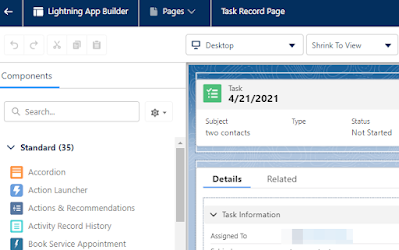
You can add the Activity Record History component from Lightning App Builder.


Here is the sample result in a Task:
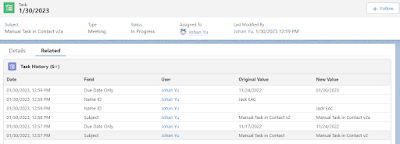


Unfortunately, I don't see this yet in reporting, hope this will come in coming releases, or let me know if you see this. But you can query with API to object ActivityFieldHistory.

sample query: SELECT Id, ActivityId, ChangedBy.Name, FieldName, OldValueText, NewValueText  FROM ActivityFieldHistory 

I have no idea why the Ids are 000000000000000AAA, hope will see some explanation in the future.


For more information, looks for Event and Task History Considerations in this article Field History Tracking (as per Spring 23 release):

  • It can take up to a few minutes for changes to appear in history.
  • You can track up to six fields on events or tasks.
  • After an activity is deleted, the history for the activities can be visible via API queries for up to a few days. The history remains available because it’s deleted asynchronously from the activity.
  • Not all changes to recurring and child events are tracked.
  • You can’t delete specific field history records.
  • Bulk processes such as Bulk API transactions or event syncing can be delayed when field history tracking is enabled. If processes are delayed, consider turning off activity field history tracking.
  • The parent record of an activity is locked when the activity history updates. For example, if an activity is linked to thousands of accounts, each account is locked while the history updates. As a best practice, avoid data skew. If processes fail because of parent-child row locking, consider turning off activity field history tracking.
  • Field value changes caused by process builder, Apex triggers, or flows are tracked in an activity’s history. Users see the change only if their field-level security settings permit them to. In other objects, field changes from processes, triggers, and flows are tracked only if the current user has permission to edit the modified fields.
  • If a previously encrypted field used for tracking is unencrypted, the values tracked while the field was encrypted don’t appear. After the field is unencrypted, the values are tracked in history.
  • Activity history is available in APIs only for admins with permission to modify all data.
  • For activities, field history is shown in a Lightning component that looks like a related list. Instead of managing the history on the page layout, you place the Activity Record History component on Lightning pages for event and task records. You can add the Activity Record History component to custom event and task pages or remove it from the default pages. The history list stays empty until you turn on field history tracking in the Object Manager.
  • The history list isn’t available in Salesforce Classic or in the mobile app.


Reference:


Tuesday, February 9, 2021

Salesforce: Roll up Activities to Account

In Lightning, activities can be configured as Activity Timeline or Related Lists. As an admin, you can configure this from Setup | User Interface | Record Page Settings | Default Activities View (desktop only).

However, users are also able to personalize the activities view on their own as Activity Timeline or Related Lists from Settings | Display & Layout | Record Page Settings.

Another thing that admin can configure is to enable roll-up activities to a contact's primary account, this means activities (event, task, and email) links to Contact will appear in their direct Account too. To configure this, navigate to Setup | Feature Settings | Sales | Activity Settings, enable roll up activities to a contact's primary account.

Additionally, activities (event, task, and email) in Opportunity and child objects (with Master-Detail relationship to Account only) will appear in Account too, this behaviour is applicable for both views with Activity Timeline or Related Lists. However, Case activities will NOT roll up to Account.


In summary,
* with "roll-up activities to a contact's primary account" is enabled
^ child of Master-Detail relationship


Notes: to enable Contacts links to multiple Accounts, look for Account Settings in the Setup menu, then enable Allow users to relate a contact to multiple accounts.


Activities will not roll up from the child to the parent in a custom object, even with the Master-Detail relationship.


Reference: 


Sunday, January 3, 2021

Salesforce: Customize Log a Call button

 More than 2 years ago, I blog on Log a Call button does not appear in Activity, this blog would be the continue with the following scenario: 

  • Instead of call "Log a Call", we need to name it "Log an Activity"
  • Add a custom field in the "Log an Activity" panel called "Area"
  • Add "Area" field in the Activity logged panel

Add custom field
From Object Manager, you will not see the New field button in the Task object, but go to the Activity object, then you will see the New button in Fields & Relationship.
Create the custom field here, you may choose to add the field to Event and Task layouts.


Create "Log an Activity" action
From the Setup menu, go to Global Actions, then click the New Action button, select and enter the data then click the Save button.


You will see a layout to add/remove fields for the new action, let us add "Area" here, click the Save button once done.


Add "Log an Activity" action to Activity component
Let us add the "Log an Activity" action (and remove the "Log a Call" action if exist) from Contact. Go Contact object from Object Manager, open a page layout (make sure this is the correct page layout). Look for the "Salesforce Mobile and Lightning Experience Actions" section, if you see the message "Actions in this section are predefined by Salesforce", click the "override the predefined actions" link.

Click "Mobile & Lightning Actions" at the top panel then drag the "Log an Activity" action to the "Salesforce Mobile and Lightning Experience Actions" section, also remove the "Log a Call" action if exist. Click the Save button when done.


Now you should see the "Log an Activity" tab (with Area field) under Activity in Contact.


Once the activity saved, it will show as a closed task, but Area is not added yet.


Add "Area" field in the Activity logged panel
Navigate to Task object from object manager, click Compact Layouts tab, then New (or edit existing compact layout), add Area field, I also add a few more fields such as Status, Created By.


Click the "Compact Layout Assignment" button to assign the newly created layout as the primary compact layout.


The "Subject" will appear on the top (next to the icon) and the "Description" field will be shown by default. If you go to Account, you will see the same task too, because, by default, activities from Contact will roll-up to Account. However, there is a small difference here, instead of showing "you logged a call about" account name, here you will see the task with "you logged a call with" contact name.


Reference:

Thursday, October 4, 2018

Einstein Activity Capture

Einstein Activity Capture is introduced on Summer '18 release, it is free up to 100 licenses for org with Sales Cloud license. When sales rep connects their Google™ or Microsoft® account to Salesforce, activities from those accounts show up on business and person accounts, contacts, leads, opportunities, quotes, and contracts in Salesforce. Plus, reps get read-only access to the Activities dashboard, which lets them view a summary of sales activities.

Step to enable Einstein Activity Capture:

1. Activate Einstein Activity Capture
Reach out to Salesforce Support to enable Einstein Activity Capture. Once enabled, you should see Einstein Activity Capture under the setup menu.


Then, enable Einstein Activity Capture from Setting menu.


2. Assign Permission Set to user
You need one of the following Permission Set depends on your license:
License = Sales Cloud Einstein --> Permission Set = Sales Cloud Einstein  
License = Inbox --> Permission Set = Inbox with Einstein Activity Capture
License = Sales Cloud --> Permission Set = Standard Einstein Activity Capture


3. User Setup
Once the permission set given to the user, the user needs to configure it from their setup menu. Click username from the top right corner, click Settings,  looks for Einstein Activity Capture, then click Settings. 


It will popup Meet Inbox window, then click Next and follow the wizard.


Then, select a Google or Microsoft account to connect.


Once account added, it will be shown in Connected Account under user Einstein Activity Capture setup menu.


Here you have the option if you want to share the emails and events to Everyone, My Groups, and Only Me.


Activity Sharing


Only Me: 
Events - Others see only the event's date, time, and attendees.
Emails - Others see only an email's sender, recipients, and date.


Everyone:
Events - Others see all details for the event.
Emails - Others see the full contents of the email.

My Groups:
Events - Group members see all details for the event. Others see only the event's date, time, and attendees.
Emails - Group members see the full contents of the email. Others see only the email's sender, recipients, and date.
The group here refers to Private or Unlisted Chatter Group, if you are a member of the group, but it shows You have no groups to share with. To share with a group, join or create a private or unlisted group that allows sharing, this means the group has not been enabled for sharing.


add Enable Email and Event Sharing checkbox

Follow this step to enable Chatter Group sharing:
  • Go to the Chatter Group 
  • Click on Edit Object from the upper right corner;
  • Select Page Layout;
  • Add the Enable Email and Event Sharing field checkbox;
  • Click Save.
  • Then Go back to the Group
  • Edit the Group and check the field Enable Email and Event Sharing field checkbox;
  • Click Save.


4. The Moment of Truth

Sending an email out using your email client to Contact or Lead
Based on the email sent out, Salesforce will automatically tag the email to the Contact or Lead as Past Activities. You need to make sure the email address in Salesforce is correct.


Contact reply your email
When your contact email you and his/her email address is in Salesforce, the email will auto added as Past Activities too.


What happened if more than one Lead or Contact with the same email address? 
The email correspondence will be linked to all Contact and Lead.


Reference:


Wednesday, January 14, 2015

Salesforce: Activity Type reporting

Activity is pretty unique in Salesforce.com, it consists of two objects: Event and Task, but it have almost similar structure. When you add a custom field for Activity, instead of click Event field or Task field, but you will find a menu Activity Custom Fields under Activities menu. In structure level, the field will be added in both Event and Task.

Type is standard field in both Event and Task, you can customize to have same values or different between Event and Task.

When come to reporting, you can run a report with combined data between Event and Task, just select standard report type Tasks and Events. Type field will be shown as Activity Type on the report.

We found an issue when would like to group by Activity Type, if both Event and Task have same values, instead of group them into the same group, it will be group into 2 group, one for Event and one for Task.


Solution:
1. Formula Field
When you create formula field in 'Activity Custom Fields', Type field is not visible for Activity - NOT POSSIBLE.


2. Workflow Rule
- Create a Custom Text field in Activity Custom Field

- Create custom field on Activity
o Name = Type
o Type = Text
o Length = 25

- Create Workflow rule on Event
o Name = Update Type from Event
o Evaluation Criteria = Evaluate the rule when a record is created, and every time it’s edited
o Description = To update custom field Type with event type for reporting purpose
o Rule Criteria = Event: Type NOT EQUAL TO null

- Create Field Update action on Event
o Name  = Update Type from Event
o Field to Update = Event: Type
o Field Data Type = Text
o Formula Value = TEXT(Type)
o Associate this action to above Event workflow and activate the Workflow

- Create Workflow rule on Task
o Name = Update Type from Task
o Evaluation Criteria = Evaluate the rule when a record is created, and every time it’s edited
o Description = To update custom field Type with task type for reporting purpose
o Rule Criteria = Task: Type NOT EQUAL TO null

- Create Field Update action on Task
o Name = Update Type from Task
o Field to Update = Task: Type
o Field Data Type = Text
o Formula Value = TEXT(Type)
o Associate this action to above Task workflow and activate the Workflow

Modify the report to group by custom Type field, see the result below:


If you have any existing data, you need to mass update Event and Task to populate Type to the custom field.

3. Apex Trigger
This is exactly the same logic with using Workflow, since we can use workflow to achieve this, why need to use trigger?


Reference: Reporting on the Activity Type field


Tuesday, January 6, 2015

Salesforce: Activity Visibility Controlled by Parent

In Salesforce, for Activity objects (Task & Event), there are only 2 options in the Organization-Wide Defaults sharing setting:
  • Controlled by Parent
  • Private


Private
Only the activity owner (labeled as Assigned To) and users above the activity owner in the role hierarchy can edit and delete the activity.
Users with Read access to the record to which the activity is associated (Name and Related To) can view and report on the activity.

Controlled by Parent
A user can perform an action (such as view, edit, transfer, and delete) on an activity based on whether he or she can perform that same action on the records associated with the activity.

For example, if a task is associated with the Acme account and John Smith contact, then a user can only edit that task if the user can edit the Acme account and the John Smith contact.

The "parent" of the activity record is:
  • Who Id (Name): Contact and Lead
  • What Id (Related To): Account, Opportunity, Case, Campaign, Asset, and custom objects with Allow Activities enabled.
Scenario: Task is assigned to other users and
  1. Both Name and Related To are blank --> unable to open the Task.
  2. The Name is linked to a Contact the user cannot access, and the Related To is blank --> unable to open the Task.
  3. The Name is blank, and the Related To is linked to an Opportunity that user cannot access  --> unable to open the Task.
  4. The Name is linked to a Contact the user can access, and the Related To is blank --> able to open the Task.
  5. The Name is blank, and the Related To is linked to an Opportunity that user can access  --> able to open the Task.
  6. The Name is linked to a Contact the user is unable to access, and the Related To is linked to an Opportunity where user can access  --> unable to open the Task.
  7. The Name is linked to a Contact the user can access, and the Related To is linked to an Opportunity where user cannot access  --> unable to open the Task.
  8. The Name is linked to a Contact the user can access, and the Related To is linked to an Opportunity where user can access  --> able to open the Task.
In summary, check this table:


The same applied for permission to edit the Task; the user needs to have edit access on both records or one of them if Name/Related To is blank.


To edit a task, the user needs to have Edit Tasks permission defined in the Profile or Permission Sets and to edit an event, the user needs to have Edit Events permission defined in the Profile or Permission Sets. Both permissions are located under General User Permissions in the profile, or this permission can also be assigned to specific users using the Permission Set.

When a user creates a task/event, regardless of the parent of the task/event owner, the default task/event will be assigned to the current user, not based on the parent record owner.

When the user is assigned to a task/event, the user is able to access and edit the task/event (the user needs to have Edit Tasks/Edit Events permission to edit the task/event), regardless of the OWD sharing setting for Activity, and even user does not have access to the parent record of that Activity record. This edit access will include users in the higher role hierarchy of the assigned user.

Tasks or Events are special objects; there is no object permission in the profile, so you will not see permission settings of Read, Create, Edit, Delete, View All, and Modify All. Although Task and Event Tab, Record Type and Page Layout Assignment exist in the profile setup.

Permissions related to View an activity:
  • Be assigned to the activity, or
  • Be above the user assigned to the activity in the role hierarchy or
  • Have at least read access to the record to which the activity is associated or
  • Have the “View All” object-level permission in the related record or
  • Have the “View All Data” permission

Create an activity:
  • Have the “Edit Tasks” and “Edit Events” permissions, AND
  • Have at least read access to a record if associating the activity with another record

Edit or Delete an activity:
  • Have the “Edit Tasks” and “Edit Events” permissions, AND
  • Be assigned to the activity, or
  • Be above the user assigned to the activity in the role hierarchy or
  • Have the “Modify All” object-level permission in the related record or
  • Have the “Modify All Data” permission

View, add and edit events on other users’ calendars:
  • Have the “Edit Tasks” and “Edit Events” permissions to create and edit activities AND
  • Have access to the user’s calendar, which depends on your organization-wide calendar sharing defaults and how the user has set up individual calendar sharing.

Note:
Events marked as private via the Private checkbox are accessible only by the user assigned to the event. Other users cannot see the event details when viewing that user’s calendar. 
However, users with the “View All Data” or “Modify All Data” permission can see private event details in reports and searches or when viewing other users’ calendars.


Tip:
The user who is assigned to an activity in the Assigned To field is often referred to as the “activity owner”.


Reference:


Wednesday, November 12, 2014

Salesforce: Manage Task Notifications

In Winter '15 release, Salesforce introduce a change in Task notification to let user manage their own email notification. This is enabled by default.

Before Winter '15 release, when user create a Task, there is a checkbox Send Notification Email, if Task is assigned by other user, user who receive Task assigned do not have control to get the email notification or not.

Before Winter '15:


After Winter '15:
notice Send Notification Email is no longer exist

Admin able to deactivate this feature by navigate to:
- Setup | Customize | Activities | Activity Settings
- Deselect Enable User Control over Task Assignment Notifications
- Submit
Deactivate this restore like before Winter '15 release.

When this feature enabled, user can control Task email notification from:
- My Settings | Calendar & Reminders | Reminders & Alerts 
- In Events and Tasks section, look for option Email me when someone assigns me a task
This option is enabled by default, uncheck this will stop user to get any email when task assigned to the user.


Known issue:
"Enable Activity Reminders" in Setup | Customize | Activities | Activity Settings, must be enable, otherwise user will not see "Reminders & Alerts" under Calendar & Reminders, so cannot set option for "Email me when someone assigns me a task"


Reference:
Why I do not see the "Email me when someone assigns me a task" option under my Settings?


Page-level ad