Pages

Tuesday, July 4, 2023

Salesforce: Query on Group and GroupMember

Group object is quite unique as it stores multiple types of data, from Public Group, Queue, Role, etc., you can see all the Type values in this article Group.

Note: The Type for Public Group is Regular

Sample query: SELECT Type, COUNT(Id) FROM Group GROUP BY Type


For user members in Group and Queue can be a query to the GroupMember object. Sample query:

All queue with queue members
SELECT Id, GroupId, Group.Name, UserOrGroupId FROM GroupMember WHERE Group.Type = 'Queue'


All public group with public group members
SELECT Id, GroupId, Group.Name, UserOrGroupId FROM GroupMember WHERE Group.Type = 'Regular'


All inactive users in a queue or public group
SELECT Id, GroupId, Group.Name, Group.Type, UserOrGroupId FROM GroupMember WHERE UserOrGroupId IN (SELECT Id FROM User WHERE IsActive = false) ORDER BY Group.Name


Reference:


Tuesday, June 27, 2023

Salesforce Data Storage

When your company purchased a Salesforce org., it will be allocated with a certain space of data storage, plus the number of licenses acquired and type of Salesforce edition. For the details, check the references below.

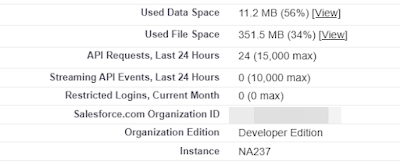
You can see the Used Data Space from Company Information in the setup menu. The screenshot below shows that Org has used 56% or 11.2MB of the allocated data storage.


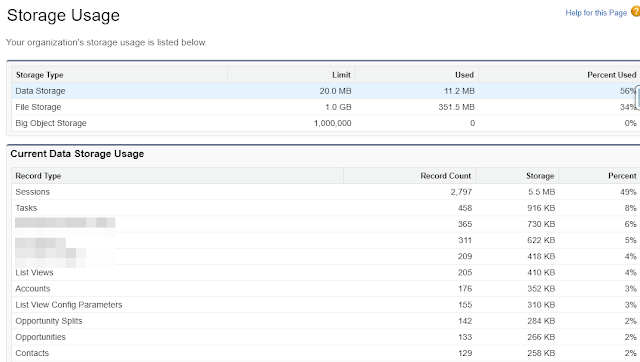
To get the details of which object used the storage, navigate to Storage Usage under the setup menu.


Few things to note:

  • Attachments will use file storage, not data storage. But Email Messages will use data storage.
  • Most records are roughly 2 KB with some exceptions, see this article
  • such as Person Account (4KB for an Account and a Contact)
  • EmailMessage records count as the actual size of the Email stored in HtmlBody and TextBody fields, e.g. a 100-KB email message used 100 KB of data storage space
  • Rich text fields in an object still count as 2KB for each record
  • Archived activities are not removed from Salesforce, and they still count for the storage usage


Reference:


Sunday, May 14, 2023

CRM Analytics: Multivalue field

We shared a blog about working with multivalue fields almost two years ago with dataflow, where we read the multivalue field as a text field and used the computeExpression node to create a multivalue field. 

In this blog, we have something similar, except the source field is a text field separated by comma.

Here is the sample data in Salesforce:


The need: to have a list widget in CRM Analytics, so the user is able to filter the dashboard by Segment, where it should be a single, from the above screenshot: AA, GB, MM, SMB. So, if the user selects SMB, this will filter the data to ABT Inc, Adams335 Inc, and Adams991 Inc.

Solution: we can use dataflow as explained in the previous blog, or make use of the recipe as below screenshot: 


We can make use of both original and newly created fields from the recipe in the dashboard, use the text field in the table, and the multivalue field in the list widget:


Tuesday, May 9, 2023

Salesforce: Dynamic Forms controlling Field Type

One of the benefits of using the dynamic form is the ability to show and hide fields live based on 

  • Record field value selected or entered
  • User, e.g., profile, time zone, custom field, etc.
  • Parent record fields

But, not all field types can be used as a controlling field, as per the Summer '23 release, here is the list of field types that can be used: 

  • Auto Number
  • Checkbox
  • Currency
  • Email
  • Formula (Number) 
  • Formula (Text)
  • Number
  • Percent
  • Phone
  • Picklist
  • Text
  • URL

The following types are not supported as a controller field:
  • Date
  • Date/Time
  • Lookup
  • Picklist (Multi-Select)
  • Rich Text Area
  • Text Area

You also can set filter logic (AND, OR) if there are multiple filters.


CRM Analytics: Adding existing widget to different layouts

Background: We have a CRM Analytics dashboard with default (web) and mobile layout. As the business grows and changes, we need to add more widgets to the dashboard.

Adding widgets to a dashboard is easy by dragging and dropping the new widget into the canvas. But, doing the same activities two times on web and mobile layout is not fun.

So, here is the step to "copy" the widget from one to another layout:

1. Edit the dashboard

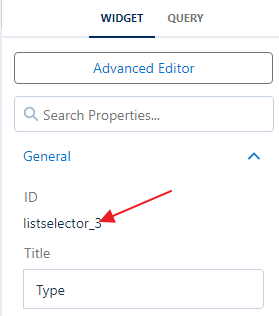
2. Find the ID of new widgets in the source layout

Note down the widget ID.


3. Open the target layout

Look for the widget Id in "Unused Widgets", and drag it to the canvas of the new layout. If you do not see this, click the gear icon (Dashboard Properties) at the upper right of the screen.


Sunday, April 23, 2023

Salesforce: Dynamic form by Record Type

Background: Universal Container uses many record types in the Case object, one of the new requests is fit to use the dynamic form feature, but does not want to impact all existing record types which still use page layout.

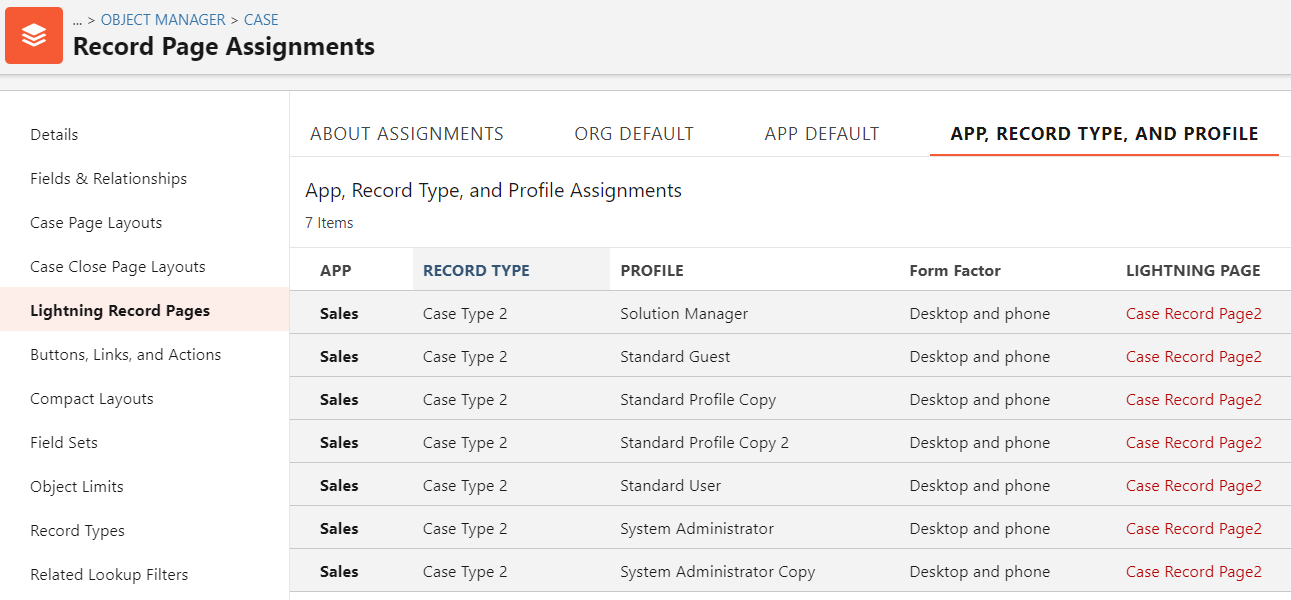
Solution: create a new lightning record page (or clone from the existing one) and assign it to:

  •  A specific app
  • The new record type
  • All profiles that will use the new lightning record page 


Reference:


Page-level ad