Pages

Tuesday, October 17, 2023

Salesforce: Related components

There are many components available in Lightning Page Builder related to the child object, parent, or child of the parent. Let us discuss each component here:


Related List

This component will show all "related lists" (child objects) that are added to the Classic page layout assigned. There is nothing new here; all setup is done in the Classic page layout. It will show all data from the child objects, but we cannot filter the related list based on something, such as "Open Opportunities".

The benefit of adding the child objects to the related list is, if you have the Related List Quick Links component, the child records will be automatically shown there.


Related List - Single

The idea of using this component is to show records from a child object that links to the record, instead of all child objects that are added to the related list. 

Additionally, instead of showing details of the child record, we can configure the component to show the child of the parent record. 

Example: On the Contact page, we can configure the component to show Contact Roles (which is a child object of the Contact). Or, we can also configure the component to show Assets (which is a child object of the Account).


One thing to make sure here is, the object must be added to the related list of the "parent record"object (as in the above screenshot).

Here is the option of "Parent Record" for Contact, select "Use This xxxx object" to show the child the current object; if the current object has other parents, it will show the field name here.

For the "Related List Type", the list (Basic List and Enhanced List) will only work when the component is used in the broader panel; otherwise, it will shown as a Tile.


Dynamic Related List - Single

We discussed Dynamic Related List in the previous blog; in short, this component is enhanced from Related List - Single:
  • It does not depend on the related list
  • Ability to filter only specific data, such as Open Opportunities, Open Cases, etc.
  • Show/hide action bar
  • Configure the fields, sort field and order
But because this does not depend on page layout, the object added here will not shown in the Related List Quick Links component.

However, there is a limitation of Dynamic Related List - Single, it does not support all child objects as in the "Related List - Single" component, see the difference here:

Related List - Single

Dynamic Related List - Single

As you see from the above screenshots, for the Case object, Dynamic Related List - Single does not have Email, Files, etc.


Related Record

This component allows the admin to show a set of fields from the object itself or from the parent record.


You need to create "action" for the object and set it as Update Action. When creating the action, you can select the fields to be added, set as mandatory or as read-only.


Thursday, September 28, 2023

CRM Analytics: Build Cumulative Percentage Chart

Use case: show the percentage of runners who finish the 5 km run in less than 35 minutes, less than 40 minutes, less than 45 minutes, and 45 minutes or above.

Here are the steps

1. Create a Compare Table

2. Clone "Count of Rows" column

3. Edit cloned "Count of Rows"


4. Select "Running Total" from f(x), you can add a header too


5. Switch to Query mode to calculate the percentage

Here is the original query

  1. q = load "run_result";
  2. q = group q by 'Bucket';
  3. q = foreach q generate q.'Bucket' as 'Bucket', count(q) as 'A';
  4. q = group q by 'Bucket';
  5. q = foreach q generate 'Bucket', first(A) as 'A', sum(sum(A)) over ([..0] partition by all order by ('Bucket')) as 'B';
  6. q = order q by 'Bucket' asc;
  7. q = limit q 2000;

Update row #5 to
q = foreach q generate 'Bucket', first(A) as 'A', sum(sum(A)) over ([..0] partition by all order by 'Bucket') as 'B', sum(sum(A)) over ([..0] partition by all order by 'Bucket')/sum(sum(A)) over([..] partition by 'all') as 'cumulative (%)';

6. Format "cumulative (%)" to Percent or Custom


7. Switch the chart mode and select line chart

8. Hide A and B from Y-Axis and done


With this chart, we can easily understand the percentage of runners who complete the run in less than 35 minutes, less than 40 minutes, less than 45 minutes, and 45 minutes or above.


Tuesday, September 26, 2023

Bucket field in CRM Analytic

There are a few options to bucket field in CRM Analytics; let us see each option:

Scenario: field name = Option, bucket value A, B, C as "Executive", D, E, F as "Premier", all others as "Standard".


1. SAQL in the dashboard

Edit the widget and hit query mode

q = load "SalesData1";
q = filter q by 'Country' == "Singapore";
q = filter q by 'Option' is not null;
q = foreach q generate (case when Option in ["A","B","C"] then "Executive" when Option in ["D","E","F"] then "Premier" else "Standard" end) as 'Bucket';
q1 = group q by 'Bucket';
q1 = foreach q1 generate 'Bucket', count(q1) as 'Count';

This will work; however, there will be issues:

  • Unable to broadcast selection as facet from the chart with SAQL because the identifier is unknown. When selecting the grouping, other widgets will get an error "Can't display this widget. This widget can't be displayed because there is a problem with its source query: Undefined identifier: "SAQL Field As". Make sure the "SAQL Field As" identifier exists and is spelled correctly without spaces.". However, the widget will still be able to receive filters from other widgets. You can deactivate "Broadcast selections as facets" for that query, but it is not ideal.
  • Performance factors, system recommended: No Groupings After Projections and No Case Statements in Projections


Another sample:

q = load "SalesData1";
q = filter q by 'Country' == "Singapore";
q = filter q by 'Option' is not null;
q = group q by ('StartTime', 'Owner.Region__c');
q = foreach q generate q.'StartTime' as 'StartTime', (case when 'Owner.Region__c' is null then "Unknown" else 'Owner.Region__c' end) as 'Region', count(q) as 'Count';
q = order q by ('StartTime' asc, 'Region' asc);
q = limit q 2000;


2. Edit field value

Issue:

  • Loss of the original field value
  • The fields will not be grouped, even if they have the same value

From the screenshot above, the three Executive originally were A, B, and C; they are not combined by the system.


3. Using Recipe or Dataflow to create new fields

This is the most ideal option, but you have to edit the recipe or data.


Sunday, September 24, 2023

Salesforce fields and maximum length

Common and useful system 'Name' fields length and maximum characters:

  • Account Name = 255
  • Opportunity Name = 120
  • Contact First Name = 40
  • Contact Last Name = 80
  • Lead First Name = 40
  • Lead Last Name = 80
  • User First Name = 40
  • User Last Name = 80
  • Profile Name = 255
  • Permission Set Name = 80 
  • Campaign Name = 80
  • Task Subject = 255
  • Event Subject = 255
  • Case Subject = 255
  • User Role Name = 80
  • Queue Label = 40
  • File Title = 255
  • Report Name = 40
  • Report Folder Name = 40
  • Report Type Name = 80
  • Dashboard Name = 80
  • Dashboard Folder Name = 40
  • List View Name = 40
  • Custom Object Name = 80
  • Record Type Name = 80
  • Record Type Description = 255
  • Custom Field Label = 40
  • Field Help Text = 510
  • Field Description = 1000
  • Picklist and Multi Picklist LOV = 255
  • Text length for filter criteria in a report = 1,333
  • Field API = 40 (does not include __c)
  • Maximum character for Description for a custom field = 1,000
  • Maximum character for Help Text = 510

Reference: 


Monday, August 14, 2023

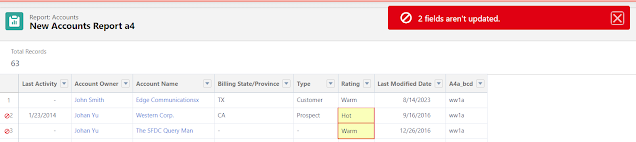
Salesforce: Report Inline Editing Limitation and Issue

Report Inline Editing is a great feature where users are able to edit the data (multi fields and multi rows) easily via report. The same thing can be done via list view, but more flexible than list view:

  • Not all users able to create/edit public list view
  • Need to add record type as a filter in list view if the object has multiple record type
  • List view inline editing does not support controlling or dependent picklists

So, the report is a perfect option to cover the above issues. Report inline editing also honors the user has the right permissions to edit the data, only when these conditions are met for Object Permissions, Field Level Security, and Page Layout.

  • Users have edit access to the associated object.
  • Users have edit access to the associated field.
  • The associated field is included and editable in the page layout assigned to the user profile.


However, not all fields are supported by report inline editing, e.g. Opportunity Amount, for complete reference, check out this article Updating Multiple Fields Inline on the Report Run Page in Lightning Experience.

As always, nothing is perfect in this world and Salesforce's great community has put some ideas to make this feature better:


Issues

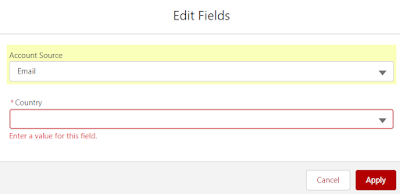
There is a minor issue related to data validation, e.g. you add a validation rule to maintain a business rule, however, if the system is unable to edit the record because of that rule, the system does not show clearly what is the cause of the error.


Another issue related to this Report Inline Editing: Dependent Field Requirement Should Match Record Pages (90 points), in summary, if the dependent field is marked as mandatory in page layout, however, no values of the dependent field are assigned to a value in the controlling field, inline report editing still requires the user to select a value, although no value is available in the dropdown too.


Reference:


Salesforce field deletion

In a blog written many years back Delete Custom Field, we shared items that will block and allow for field deletion.

Undelete field in Salesforce is also very simple, it will restore the field with data, but the admin need to note and perform a few actions as mentioned here:


Fields deleted with the data will be stayed in the "recycle bin" for 15 days before it will be hard deleted by Salesforce.

A few items to note when the fields are in the recycle bin:

  • You can see and open field detail from the object "Fields & Relationships" menu then click the "Deleted Fields" button
  • The field API name will be changed with an additional _del, such as Test_Date__c --> Test_Date_del__c
  • You can no longer query the field
  • The field metadata will no longer exist


To check who and when delete the custom field is deleted, check the "View Setup Audit Trail", the action should start with "Deleted custom field " 


Reference:


Page-level ad