Pages

Tuesday, August 26, 2025

Salesforce: Shortcut create Task

Instead of starting with a blank task record when creating a task, we can prepopulate some fields when creating a specific task, and we can create multiple specific tasks.


As shown in the above screenshot, if clicking the New Task green icon opens a new form with blank fields, of course, if the button is in Account, the Related To will be auto-populated with the Account Name.

If we have a specific task where additional fields, such as Type, Subject, etc., should be the same, we can create a Custom Action for the Task. We can even hide the fields from the layout so that users cannot change the pre-populated fields manually when creating a task. The specific tasks will appear under the arrow next to the New Task button in a record page, such as Important-1 and Important-2 in the above screenshot.

Here are the steps to create the task and add it to page layout:


1. Create New Action under Global Actions


Open the action created to set predefined field values, and click Edit Layout to add/remove only relevant fields.


2. Add the action to the object page layout, such as for the Account Page layout

In this sample, I add both Important-1 and Important-2 to the Account Layout (under Salesforce Mobile and Lightning Experience Actions), while only adding Important-2 to the Account (Sales) Layout. 


In other scenarios, if you need the action to be always visible in Salesforce, you can add it to Publisher Layout (under Salesforce Mobile and Lightning Experience Actions), you can create multiple Publisher Layouts, and assign them by profile.


The same approach can be applied to the New Event as well.


Friday, August 15, 2025

CRM Analytics: Join or Augment Master to Child

When you augment the master table with a child table and there are multiple rows for the same master value, which row will the dataflow and recipe select?

Sample Data:


Master

Child

Dataflow

With "Look Up Multiple Values"

With "Look Up Single Values"

Summary:
  • Look Up Multiple Values: sum value of all numeric (measure) fields, while dimension (text) fields will retrieve all values, although only 1 value is shown when you browse the data in a lens. Check out this blog. 
  • Look Up Single Values: the first matching record for both numeric and text fields.

Recipe

With "Look Up Multiple Values"


Without "Look Up Multiple Values"

Summary:
  • With Look Up Multiple Values: sum value of all for numeric (measure) fields, while dimension (text) fields will retrieve all values, "all values" will be shown in the recipe, but in Lens, it will show 1 value only. 
  • Without Look Up Single Values: as per this article, Lookup - the lookup returns only the first matching record. However, in my test results, the system will get the row with the lowest value of the numeric field in sort order. If no numeric field, sort the text field alphabetically in ascending order and get the first row.


Reference:


Thursday, August 7, 2025

CRM Analytics: Sort Date field

I recently encountered working with a CSV file containing a date field in dd-MM-yyyy format. CRMA supports this format when manually loading the CSV file. Additionally, you can vote for this idea for more format support.


However, once the field is uploaded to CRMA, even if it is selected as a Date type, it is stored as dimensions, although it automatically generates multiple derived fields (like day, month, year, quarter, day_epoch, etc.).

This causes an issue when you add the field in a table widget and sort it. Because the generated date fields are dimensions, sorting is performed alphanumerically rather than in date order.


Here are a few workarounds:

1. Add the day_epoch field and sort with that field, although it is not a good user experience


2.  Load the CSV file in yyyy-MM-dd format


The system supports using the yyy-MM-dd format when uploading the CSV file


3. Use toDate() function in the dashboard, but this approach will stop your ability to edit the widget with clicks

q = load "ddmmyyyy";
q = foreach q generate q.'Id' as 'Id', q.'Amount' as 'Amount', q.'Date' as 'Date',toDate(Date_Year+"/"+Date_Month+"/"+Date_Day,"yyyy/MM/dd") as 'Date_Formatted';
q = order q by 'Date_Formatted' asc;
q = limit q 100;


4. Same as (3) by using toDate() function to format the date in a dataflow or recipe.


Reference:


Thursday, July 31, 2025

MCAE: Open Prospect user interface with Prospect ID

If you have the Prospect ID, you can open the Prospect detail with the following URL with parameters:

With the Pardot user interface:
https://pi.pardot.com/prospect/read/id/179597888
https://pi.pardot.com/prospect/read?id=179597888

With the Account Engagement user interface:
https://mydomain.lightning.force.com/lightning/page/pardot/prospect?pardot__path=%2Fprospect%2Fread%2Fid%2F179597888


Monday, July 28, 2025

B2B Marketing Analytics: sfdc_internal__B2BMA

B2B Marketing Analytics, a CRM Analytics app within Salesforce, is designed to analyze marketing and sales data. It leverages datasets from Account Engagement (formerly Pardot) and Salesforce to provide insights into campaign performance, prospect behavior, and overall marketing effectiveness. 

You can create the B2B Marketing Analytics app from Analytics Studio, select B2B Marketing Analytics, and follow the wizard.


You need to enter your Pardot Account ID, then select optional features, such as Account-Based Marketing, Multi-Touch Attribution, Prospect and Activity dataset, etc. If you stopped with the following error:

Unable to create app based on template: [sfdc_internal__B2BMA].

* Your org does not currently meet minimum data requirements to proceed. Please fix the following issues before creating a 'B2B Marketing Analytics' Application:

In the 'sfdcDigest_Contact_CWA' node, the 'pi__grade__c' field doesn't exist, is deprecated, or isn't accessible to the Integration User. In the 'sfdcDigest_Contact_CWA' node, the 'pi__score__c' field doesn't exist, is deprecated, or isn't accessible to the Integration User.

You need to adjust the fields in both Lead and Contact, the Account Engagement Score (pi__score__c) and the Account Engagement Grade (pi__grade__c) fields, to make them visible (read-only is sufficient) to the Analytics Cloud Integration User profile. 

From the object manager, open each field and update the field-level security settings to grant visibility to the Analytics Cloud Integration User profile. 

Re-create the B2B Marketing Analytics app from Analytics Studio, and you should be able to pass the error.

Once the app is created, it can also be seen in the "Auto-Installed Apps" in the setup menu.


Monday, July 14, 2025

Salesforce Field history tracking on Record creation

In Salesforce, field history tracking can be setup for both standard and custom fields. 

On Record Creation
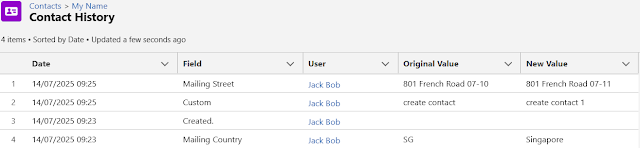
No, field history tracking does not log the initial values when a record is created.


On Record Update
Yes, it tracks changes to the specified fields when they are updated. It logs the old value, new value, user who made the change, and timestamp.


As noted in the last screenshot, the Mailing Country should ideally be auto-updated (from Flow, Trigger, etc.) after the record is created; however, the order can be misleading, as they have the same timestamp. If we use SOQL, will we see the difference? No, they may have the same exact milliseconds


Reference:

Page-level ad