Pages

Monday, February 21, 2022

Salesforce: File Privacy on Records

By default, when you upload files from a record Related List, the file will be visible to all users who have access to the record. But, this can be changed by adding a field called File Privacy on Records in the Content Version page layout.


Once the file owner selects that checkbox, the file will not visible to other users, unless manually shared, but users with View All Data permission will be able to see those files.

Step to update the checkbox:
1. Upload the files from Related List, you can upload multiple files in one go

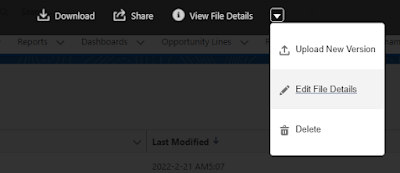
2. Open each file and click the arrow next to View File Details, then select Edit File Details

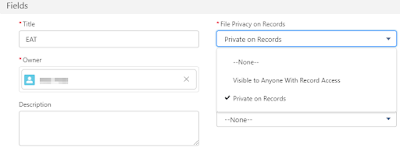
3. Change File Privacy on Records from Visible to Anyone with Record Access to Private on Records

Notes:
  • The file visibility does not roll up to users in the higher role hierarchy, so when the file owner sets this as Private on Records, the manager will not see the file, unless shared manually.
  • The file visibility does not depend on the related record owner but depends on the file owner.
  • If you query on ContentDocument object (prefix: 069), this is stored in SharingPrivacy field, P for Private on Records, and N for the default visible to anyone

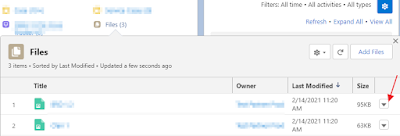
However, if you click the Edit File Details link from the Files dropdown in a related list, you will not see that checkbox, as mentioned in this article. I have created an idea exchange to vote.


Reference:


Salesforce: Opportunity Split Query

This is the continuation of the previous blog Forecast and Opportunity Split, in this blog, we will share more on Opportunity Split records.

SOQL
SELECT Id, OpportunityId, SplitOwnerId, SplitOwner.Name, CurrencyIsoCode, SplitAmount, Opportunity.CloseDate FROM OpportunitySplit WHERE SplitAmount <> 0 AND Opportunity.ForecastCategory = 'Closed' AND SplitTypeId = '1492v0000008opLAAQ' AND Opportunity.CloseDate > 2019-06-30 AND Opportunity.CloseDate < 2019-10-01 ORDER BY Opportunity.CloseDate DESC 


Summary:
  • The number of rows here is based on the number of split records that fit the criteria, so there is no summarized calculation as in ForecastingItem
  • The currency can be different based on the currency defined for the opportunity
  • The Split Amount is not roll-up to the manager.

Wednesday, February 16, 2022

Salesforce: Retrieve all fields from an Object

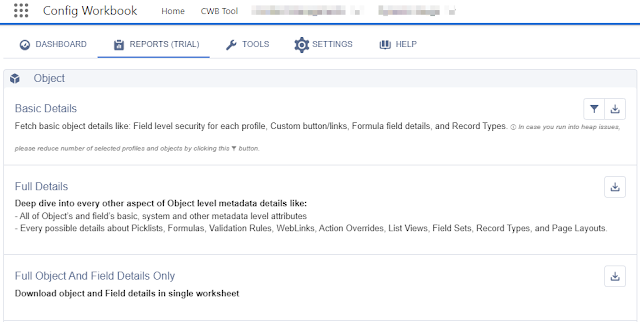
Config Workbook

This tool is not free, but you can do a trial for a few analyses, and need to install it from AppExchange.The details provided are quite comprehensive, but missing a few important pieces of information.

Click CWB Tool tab >> Reports tab >> Full Object and Fields Details Only.


This will produce an Excel file with the following columns:
  • Field Name
  • API Name
  • Data Type, missing information if the field is a Formula field
  • Picklist Value, for Picklist field only, and not for Multi-Select Picklist  
  • Length, for Text and Long Text Area
  • Visible Lines, for Long Text Area
  • Default Value
  • Mandatory
  • External ID
  • Unique
  • Case Sensitive
  • Description
  • Help Text
  • Relationship, for Lookup: Related To (object name) and Child Relationship Name
  • Number, with Precision and Scale, for the length of Currency, Number, Percent field
  • Track Feed History
  • Track History

It also missing Controlling Field, Modified By, Modified Date/Time information.


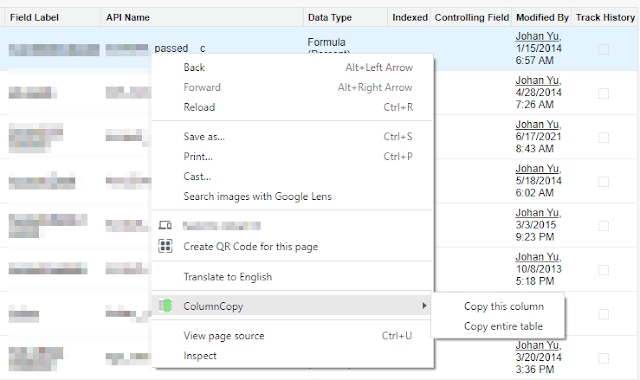
ColumnCopy extension for Chrome browser

This needs to be performed in Classic (not Lightning) with Chrome (or Edge or Opera) browser, you just need to add ColumnCopy to your browser. Once the extension is added in your Chrome browser, go to the object's field page, right-click on the field table >> ColumnCopy >> Copy entire table >> paste into Excel.


You will get all information presented in the fields table:

  • Field Label
  • API Name
  • Installed Package
  • Data Type
  • Indexed
  • Controlling Field
  • Modified By (including Modified Date/Time)
  • Track History

* Indexed and Track History will not copy by ColumnCopy because they are checkboxes.

This is good enough if you just need to get basic field information quickly.


Salesforce Schema Lister

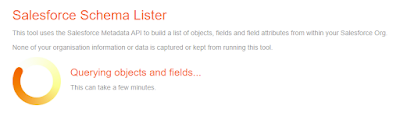
This tool uses the Salesforce Metadata API to build a list of objects, fields, and field attributes from within your Salesforce Org, this tool is part of the Toolkit for Salesforce, and please note this is a 3rd party tool, not by Salesforce.


The tool will scan all objects, instead of asking with objects that you would like to work with. This will work well if you are just starting a new org, but when working in a big org. (with hundreds of custom objects), it may take a few minutes or longer.

Once completed, you have the option to export the data into an Excel file, as a single tab or multi-tab (one object per tab).

What do you get in the Excel file?

  • Field Label
  • API Name
  • Type. including length (all fields), picklist values (including multi-select picklist)
  • Help Text
  • Formula, this is the raw formula for the field

SOQL

Query from FieldDefinition object.

Sample: SELECT DurableId, QualifiedApiName, Label, DataType, ValueTypeId, LastModifiedDate, PublisherId, Length, Precision, Scale, EntityDefinitionId, RelationshipName, ReferenceTo, Description FROM FieldDefinition WHERE EntityDefinition.QualifiedApiName = 'Account' 

You must have EntityDefinitionId or DurableId added as a filter, EntityDefinitionId refers to an object and DurableId for a field.

A few interesting fields from the query result:
  • DurableId, return ObjectName.QualifiedApiName for standard object and ObjectName.00Nxxx for custom fields
  • ValueTypeId, return id, string, boolean, integer, double, etc.
  • PublisherId, return System for standard objects, or Package Prefix name for installed packages

Full documentation here. 

Note: Because this is a query based on the user permission, the query result will be based on field (and object for lookup field) visibility for the login user. 
You don't option to retrieve Help Text here.


Custom Report Type

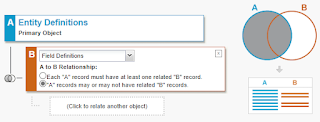
Create a custom report type with primary object = Entity Definitions with or without records from Field Definitions.


You can filter Durable ID (of Entity Definitions) to an object name to pull just fields of that object. Sample report:


Note Same as SOQL, the report runs based on the user permission, so the result will be based on field (and object for lookup field) visibility by the report running user.
You don't option to get Help Text using this method.


Salesforce DevTools

This is another Google Chrome browser extension that is mainly focused on Salesforce admin/dev productivity. You can get it and include more information from this site.

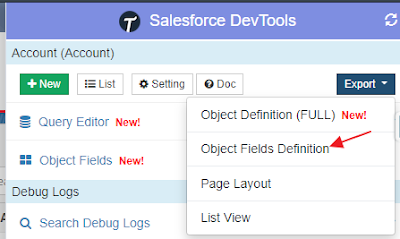
From the Salesforce DevTools panel, select the object >> Export >> Object Fields Definition 


You will get an Excel file with the following columns:
  • Field Label
  • API Name
  • Data Type
  • Length
  • Field Type, this is standard or custom field information
  • Required
  • Picklist Values
  • Formula
  • Extend ID
  • Help Text
Note Same as the previous method, the Excel file result will be based on field (and object for lookup field) visibility by the report running user.


So, which methods work best for you? I would say it depends on what you want to achieve, do you need extra information to retrieve, can you install an app into the org., can you switch back to Classic, how complex is the org., do you have visibility to all fields, etc.

Wednesday, January 26, 2022

Salesforce: What happens when the admin adds or removes items from Navigation Items?

Lightning App Builder offers admin to add/remove items easily in Navigation Items. The items added will be shown as default items in the navigation bar, which also means the user will not able to remove the items added to the Navigation Items, the cross icon simply will appear when clicking the pencil icon at far right on the navigation bar.

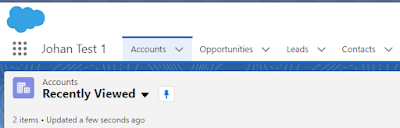
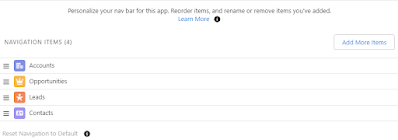
Let us create a new app with 4 items:


This is how it looks like


When you click the pencil icon at the far right of the navigation bar


Items manually added by the user will have the cross icon to remove them.


What happened when the admin remove the existing items?

Will the item removed stay or remove for existing users? The answer is both, it can be stayed or removed, but here is the guidance

The items will stay if there is personalization done by the user. What does personalization here mean?

  • Add new tabs
  • Re-order existing tabs
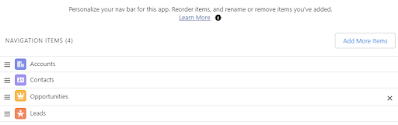
However, even the tab stays, the user will be able to remove those items now.

In this scenario, the user re-orders Contacts after the Accounts tab


The items will be removed if there is no personalization done by that particular user, even that user actively used the tabs in the past.

How do I know if a user has personalized the tab?

If the user clicks the pencil icon, notice on "Reset Navigation to Default", if this is clickable (blue color), this means the menu has been personalized. But if "Reset Navigation to Default" is not clickable (gray color), this means the user has not personalized their menu.


How about adding new tabs?

Adding new tabs will always be added to all users who use the Lightning app, no matter if they have or have not personalized their navigation menu.


Reference:


Sunday, January 23, 2022

Salesforce: Mass Update Role Hierarchy Access

In a blog written many years back, I shared sharing access from role hierarchy, which is about to give access to the Account owner for the Contact/Opportunity/Case records that related to the Account, but is not owned by Account Owner.


That access information is stored in the UserRole object, and you can mass update the access by simply updating the records in the UserRole object.

A sample query
SELECT Id, Name, ParentRoleId, DeveloperName, RollupDescription, ContactAccessForAccountOwner, OpportunityAccessForAccountOwner, CaseAccessForAccountOwner FROM UserRole WHERE PortalType = 'None'

A few fields are worth knowing from the above query:

- PortalType = None: Salesforce application role, CustomerPortal: Customer portal role, Partner: partner portal role.

- RollupDescription, this is "Role Name as displayed on reports", so it can be different with the actual Role Name.


Reference:


Monday, January 17, 2022

Salesforce: Default Account Team (2)

Six months ago, I wrote Salesforce: Default Account Team, and this blog will discuss more on Default Account Team again. 

Account Team defines additional users that are involved in an Account, in addition to the Account Owner.  One user can be added only once to the Account Team, adding the existing user will overwrite the current team role and access.

Where to access Account Team (and Opportunity Team)?

Account Team related list

Opportunity Team related list

In Account Team:
- Add Default Team = add members from default Account teams of the Account owner
- Add Team Members = manually select users to be part of the Account Team
- Team Members Access = to show each team member role and access to Account, Contact, Opportunity, and Case
- Remove All Members = remove all members added

In Opportunity Team:
- Add Default Team = add members from default Opportunity teams of the Opportunity owner
- Add Account Team = adding existing team members from Account Team to Opportunity Team
- Add Opportunity Team Members = manually select users to be part of the Opportunity Team
- Team Members Access = to show each team member role and access to Opportunity

Who can add the Account Team?

  • The account owner or users in the above role hierarchy of account owner

  • Users with "Read/Write" access on the account record, but not above the account owner in the role hierarchy, will be able to add users to Account Team, but NOT to edit and delete users from Account Team (just add). These users also can't select the level of access for the new team member, only Private for the Account record, and not the related Contact, Opportunity, and Case.


Who can add and edit the Opportunity Team?

  • The opportunity owner or users in the above role hierarchy of account owner
  • User with Modify All permission on the Opportunity object

  • Users with "Read/Write" access to the opportunity but not above the opportunity owner in the role hierarchy will NOT be able to add, edit, and delete Opportunity Team.


What is Default Account Team (and Opportunity Team)?

  • A list of users defined in the User (Account Owner or Opportunity Owner) setting

Who can add the Default Account Team (and Default Opportunity Team)?

  • In the user setting, the account owner or users in the above role hierarchy of account owner

Will the Default Account Team automatically be added to Account Team for ALL accounts owned by a user with Default Account Team?

  • It depends on "Automatically add my default account team to accounts that I create or accounts that are transferred to me" is selected when adding or editing existing Account Team

Will adding/editing a new user in Default Account Team automatically be added to ALL Account Team for accounts owned by a user?

  • It depends on "Update account teams with these members"  is selected when adding or editing existing Account Team

Issues with Default Account Team

  • The user may not aware that someone added a list of users as the default account team and set it to be auto-added to ALL Accounts or Opportunities own

  • The users added as default team may have changed role, where those users should not have extra access anymore on the Accounts or Opportunities owned by a user

SOQL

SELECT Id,OwnerId,CreatedById,CreatedBy.Name,CreatedDate,OpportunityAccessLevel,TeamMemberRole,UserId,User.Name,User.Profile.Name FROM UserTeamMember

SELECT Id,OwnerId,CreatedById,CreatedBy.Name,CreatedDate,AccountAccessLevel,ContactAccessLevel,OpportunityAccessLevel,CaseAccessLevel,TeamMemberRole,UserId,User.Name,User.Profile.Name FROM UserAccountTeamMember 

OwnerId = the account or opportunity owner, usually is the rep
CreatedById = the one who add user to default team members
UserId = user added as default team member

Unfortunately, we can't have the relationship query for OwnerId, so need to manually lookup to data from the User object.


Page-level ad