Pages

Saturday, January 15, 2022

Tableau CRM: Null Values in Dimensions and Dates

As of Spring '22 release, when you group and sort data with null values, the data will be "disappeared", simply because it is not supported by Tableau CRM by default.

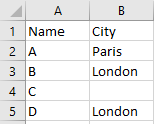
Let's use this simple data in this blog


Now let's group by City, the Name = C is just disappeared from the widget, and it also shows the wrong data count of 3, instead of 4.


The same happened when we sort the table with City, the "C" row is now disappeared.


If you are aware that the field may have a null value, you can use the computeExpression node to check if the value is null. then change it to something else, like n/a or -, some of the fields come from the augment node and if the target record is not found, it will become a null value too.

The good news is, Salesforce is aware of this and we can ask Salesforce to enable a feature for us to work with null value easily without having to check each field in computeExpression. 
As of now, this feature is still in Beta, but I see it is working good Do More with Null Values in Dimensions and Dates (Beta).

Using the same dataset, you can see "C" even it is grouped or sorted with the City field.


Tuesday, January 4, 2022

SimplySfdc in 2021


Happy New Year 2022! To follow the yearly tradition, I would like to share some statistics of SimplySfdc in 2021 -- here is the statistic for 2020.


In 2021, more blog posts are written compared to 2020 (72% less), with the total Pageviews and total Sessions are increased multiple times.

Page 2021 2020 2019 change*
Total New Page 50 29 38 72.41%
Total Pageviews 971,076 305,957 210,213 217.39%
Total Sessions 491,048 271,214 185,396 81.06%
Pages / Session 1.98 1.13 1.13 75.22%

* compare 2021 to 2020


Over the years, organic search contributes more and more traffic to the website, which is more than 85% in 2021 -- a pretty huge increase compared to 2020. Direct traffic drops significantly to 7%, traffic from Referral and Social show a slight upward in 2020.
 
Channel Source 2021 2020 2019
1. Organic Search 88.58% 82.86% 74.06%
2. Direct 7.78% 13.73% 23.25%
3. Referral 2.88% 2.69% 1.72%
4. Social  0.75% 0.71% 0.82%
 
 
Google, as always is the king of search engines globally, the same applies to SimplySfdc.com visitors in 2020, Google contributes slightly lower traffic compared to 2020. Traffic from Bing increased more than 1%, Yahoo and other search engines contribute a lower percentage compared to their percentage in 2020.

Top Search Engine 2021 2020 2019
1. Google 96.08% 96.85% 96.09%
2. Bing 3.19% 2.12% 2.61%
3. Yahoo 0.27% 0.44% 0.56%
4. Other 0.45% 0.57% 0.74%


Because of the very low percentage contribution from Social (only 0.75%), I'll not share more detail on it, but the top 5 in order: LinkedIn, Twitter, Reddit, Facebook, and Blogger.
 
 
There is no change in the top 5 countries of the visitors, however, US visitors drop quite a bit to 35%, visitors from India increase by more than 2% to 27%. France back to #6 and Singapore drop to #9 in 2021. The top six countries represent close to 76% of the total visitors, this is much lower than 2019, where the top 6 countries represent more than 78% of the total visitors, this means more countries are accessing simplysfdc.com now.

Top Visitor Country 2021 2020 2019
1. United States 35.06% 37.27% 43.60%
2. India 27.40% 25.20% 22.07%
3. United Kingdom  4.88% 4.78% 4.50%
4. Canada 3.34% 3.09% 2.85%
5. Australia 3.05% 3.03% 3.20%
6. France 2.19% 2.03% 2.09%
* France was in #8 in 2020 and #6 in 2019
* Singapore was in #6 in 2020 and #9 in 2021
 
 
From the cities' perspective, the most familiar cities still appear in the top 6 cities. New York is no longer in the top 6, it was #6 in 2020. All top 6 cities (except Mumbai) contribute a lower percentage compared to 2020. The top 6 cities represent more than 13.54% of the total visitors, this is much lower than in 2019 where the top 6 cities are contribute close to 22%, this also means that more cities are accessing simplysfdc.com nowadays.

Top Visitor City 2021 2020 2019
1. Hyderabad 3.67% 3.86% 3.27%
2. Bengaluru  2.88% 3.80% 5.27%
3. Pune 2.13% 2.38% 2.20%
4. London  1.66% 1.86% 2.14%
5. Mumbai  1.61% 1.36% 1.38%
6. Chennai 1.59% 1.80% 1.86%
* Mumbai was #7 in 2020 and #10 in 2019
* New York was #6 in 2020
 
 
This statistic includes access from desktop and mobile. Total top 5 web browsers contribute more than 99% of the visitors. Chrome again proves as the default web browser for everyone, although in this year, it drops by almost 2% of all visitors, this may mean a lot to Chrome for their market domination.
Edge takes over Safari, by almost double the percentage, although Safari still shows a good increase. Firefox again drops to #4, while Opera stay with a low usage in #5. Internet Explorer no longer appears, Microsoft has already stopped Internet Explorer by introducing Edge as the replacement in the last few years.

Top Visitor Web Browser 2021 2020 2019
1. Chrome 86.94% 88.78% 83.13%
2. Edge 5.20% 2.64% 1.58%
3. Safari 4.02% 3.13% 2.91%
4. Firefox 2.65% 3.10% 3.57%
5. Opera 0.37% 0.30% 0.32%
 
 
In terms of the operating system, there is no change in the top 5 operating systems. Windows users decreased a little to 70%, Macintosh shows a slight increase above 20%, Android lower a little compared to 2020. iOS shows a good increase, while Linux users are lesser. Mobile and tablet users increase marginally from 7.96% in 2020 to 8.25% in 2021.

Top Visitor Operating System 2021 2020 2019
1. Windows 70.01% 70.59% 74.19%
2. Macintosh 20.31% 19.57% 17.63%
3. Android 4.84% 5.16% 3.28%
4. iOS  3.41% 2.80% 2.57%
5. Linux 0.92% 1.34% 1.65%


As mentioned in last year's blog, screen resolution 1536x864 probably is 1920x1080 resolution with the display set to 125% zoom, and 1280x720 is 150% zoom of 1920x1080. So in total, 1920x1080 contributes to more than 52% in 2021, an increase from 47% in 2020 and 42% in 2019. Resolution of 1920x1080 is the standard now, while more and more users use WQHD (2560x1440) resolution.

Top Visitor Screen Resolution 2021 2020 2019
1. 1920x1080 26.26% 24.34% 24.38%
2. 1280x720 14.86% 12.65% 8.75%
3. 1366x768 11.40% 15.14% 15.62%
4. 1536x864 10.99% 10.44% 8.88%
5. 1440x900  7.45% 8.03% 7.95%
6. 2560x1440 3.65% 3.05% 2.54%
* 1680x1050 was #6 in 2020 and #7 in 2021
* 2560x1440 was #7 in 2020 and #10 in 2019
 
 
Top 5 Popular Page
Only 2 of 5 top pages from 2020 stay in 2021. A very old blog written in 2013 takes the top spot #1, another old blog written in 2014 appears in #5, and a pretty new blog written in 2020 takes spot #4. Positions 2,3, and 4 are very close hits in the 15K mark.
1. Salesforce: ISBLANK() or ISNULL() ~ 27,248 hits [2013] (#2~2018; #3~2017; #1~2016; #2~2015; #3~2014)
2. Salesforce: Convert ID from 15 to 18 characters with Excel formula ~ 15,926 hits [2018] (#2~2020; #3~2019, #15~2018)
4. Salesforce: EmailMessage object ~ 15,221 hits [2020] new blog
5. Salesforce: Formula with CONTAINS() function ~ 12,107 hits [2014] never appears in the top 5 earlier


Top 5 Referral Site
Although I do not really promote my blog in the trailblazer and Salesforce developer community, however, #Ohana shared my blog to the community which contributes to more than 54% of the total referral
 

Salesforce: Sharing Rule with Text field

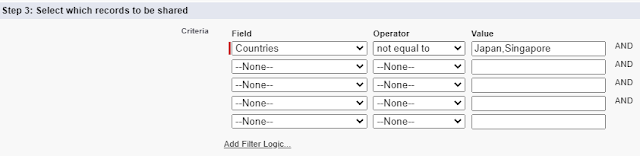
Here is the requirement: share Opportunities with a public group if the Countries (a text field) are not Japan or Singapore.

This should be easy to achieve with the Opportunity Sharing Rule "based on criteria".


From the above screenshot, the criteria look okay, but it will not work, because the field here (Countries) is a text field, it will work only for a Picklist field. 

Note: Multiselect Picklist field is not available in the sharing rule "based on criteria".


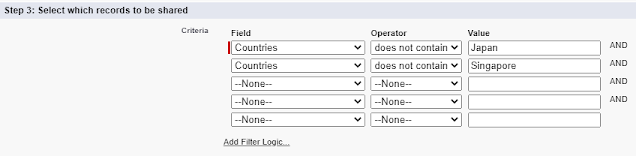
Tweak the above criteria to the following and it should work now.


Friday, December 17, 2021

Salesforce: Retrieve Report Metadata

Here is the use case, you are presented with a report with duplicate fields label, whether from the same object or different objects, but how can you easily identify each field? See a sample from the below screenshot, there is no way to tell which Created By and Created Name are from which object.


Even by editing the report, it will not tell you, of course, you can remove and add the fields back, but you are supposed not to change the report.


The answer is to check the metadata of that report, unfortunately, Salesforce does not offer to get this without using tools, such as VS Code or other IDE. But, we can use Workbench to retrieve it.

You can follow this blog to prepare the package.xml file, and retrieve the metadata using Workbench.

1. Get the "fullName"


The report should not be stored in the Private Reports folder, otherwise, you will not see the report here.

2. Prepare XML file

Copy the following XML and save it as a file called "package.xml"

<?xml version="1.0" encoding="UTF-8"?>
<Package xmlns="http://soap.sforce.com/2006/04/metadata">
    <types>
        <members>Johan_Change/Opty_and_Acct</members>
        <members>A_folder/Opportunity_by_Stage</members>    
        <name>Report</name>
    </types>
    <version>53.0</version>
</Package>

If you would like to retrieve metadata from multiple reports, you can add them to the XML file.

What is this mean <members>Johan_Change/Opty_and_Acct</members>

Text in red is the report folder API name, you can get the report folder API name from Folder Unique Name from rename folder. While the blue text is the report API name, you can get the report API name from the Report Unique Name in the report properties.

If the folder is Public Reports, use unfiled$public as the report API folder name in the Package.XML file, also you will not see that folder in Workbench step (1).


3. Retrieve Package

Open workbench:
  • select migration | Retrieve
  • select the XML file prepared in step 2
  • select "Single Package"
  • click the Next button then click the Retrieve button
  • when done, click the "Download ZIP File" link
  • extract the zip file and looks for the report
  • open the file with any text editor

<?xml version="1.0" encoding="UTF-8"?>
<Report xmlns="http://soap.sforce.com/2006/04/metadata">
    <columns>
        <field>Opportunity$Name</field>
    </columns>
    <columns>
        <field>Opportunity$Account</field>
    </columns>
    <columns>
        <field>Opportunity$CreatedBy</field>
    </columns>
    <columns>
        <field>Opportunity$CreatedDate</field>
    </columns>
    <columns>
        <field>Opportunity$Account.CreatedBy</field>
    </columns>
    <columns>
        <field>Opportunity$Account.CreatedDate</field>
    </columns>
    <currency>EUR</currency>
    <format>Tabular</format>
    <name>Opty and Acct</name>
    </params>
    <reportType>Opty_and_Account__c</reportType>
    <roleHierarchyFilter>CEO</roleHierarchyFilter>
    <scope>organization</scope>
    <showDetails>true</showDetails>
    <showGrandTotal>true</showGrandTotal>
    <showSubTotals>true</showSubTotals>
    <timeFrameFilter>
        <dateColumn>Opportunity$CloseDate</dateColumn>
        <interval>INTERVAL_CUSTOM</interval>
    </timeFrameFilter>
</Report>

The report metadata tell us that the 1st and 2nd field are from Opportunity, while the 3rd and 4th fields are from Account.

Here is the list of Metadata Type supported by Metadata API: https://developer.salesforce.com/docs/metadata-coverage

Some metadata types support using wildcard character (*), so you can retrieve all items without the need to mention each member name: https://developer.salesforce.com/docs/atlas.en-us.208.0.api_meta.meta/api_meta/meta_types_list.htm 

As you see from the above URL, Report and ListView are No, but Profile and PermissionSet are Yes.
Sample XML file:

<?xml version="1.0" encoding="UTF-8"?>
<Package xmlns="http://soap.sforce.com/2006/04/metadata">
    <types>
        <members>*</members>
        <name>PermissionSet</name>
    </types>
    <types>
        <members>*</members>
<name>Profile</name>
    </types>
    <version>53.0</version>
</Package>


Monday, December 13, 2021

Salesforce - Teams integration

Salesforce apps in Microsoft Teams allow you to search, mention, and preview Salesforce records in Teams chats between users, and Teams channel. Any Salesforce records, from Account, Contact, Opportunity, Case, Lead, etc. can be used for mention in chat and can be added as a tab.

Adding Salesforce records as tabs in the Teams allow you to:

  • View and edit record details
  • Access Chatter activities, including creating new posts
  • Access Activity histories related to the record
  • View the related records and open in Salesforce
  • Optionally, you can rename the tab name in Teams


Benefits

  • Convenient Data Sharing, you can share Salesforce records in your Teams channels and chats easily with the Salesforce Teams Integration. This enables you to start a conversation on any record. The members of your Teams channel who have the access to Salesforce can conveniently work and access Salesforce records without leaving Teams.

  • Convenient Data Access, the Salesforce - Teams integration enables your Teams users to interact with Salesforce records not only through conversations but also via channel tabs. Adding a Salesforce record as a tab allows users in the Teams can easily view details, related lists, activity timeline, and Chatter right in the Teams tab.

  • Salesforce Records Preview, if someone mentions a Salesforce record in a Teams conversation, the other users can easily preview the record without leaving Teams. As a result, users can save their time and avoid juggling between Microsoft Teams and Salesforce.

  • Editing Salesforce Records, don’t waste your time and do not jump from Microsoft Teams to Salesforce. You can edit the record details without changing your work environment to avoid the loss of any important updates.

Enable in Salesforce  

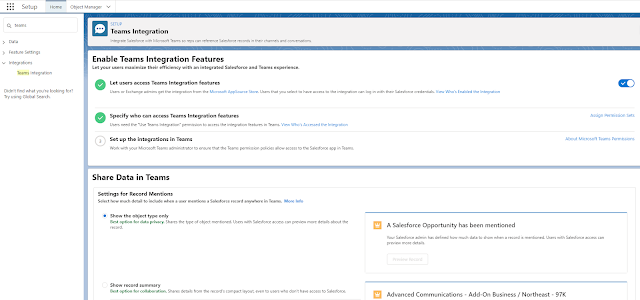
1. Go to setup menu and search for Teams Integration, then enable it. You may need to reach out to your AE to enable this feature.


2. Assign permission set called "Use Teams Integration" to users that need to access Salesforce data from Teams.

Adding the Salesforce app in Teams

1. Open Teams, click the Apps icon at the bottom left (1), type Salesforce in Apps search box (2), and click Salesforce icon (3) to install


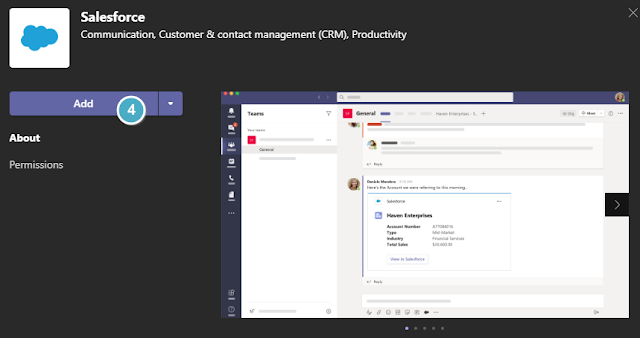
2. Next, click Add button (4)


3. From the login page, enter your Salesforce username and password.

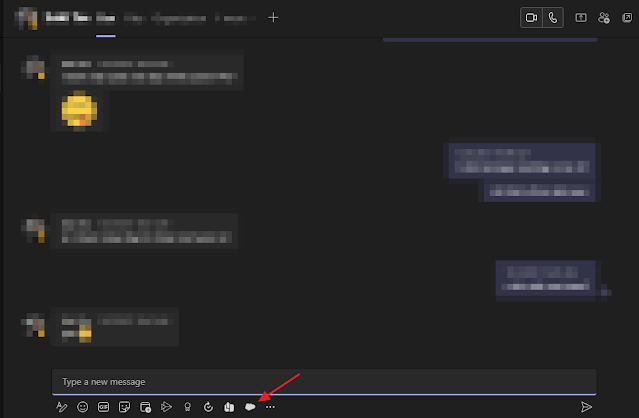
4. Done, now you should see the Salesforce icon when a chat with someone, or in a team channel.


Search, mention, and preview Salesforce record in Chat

1. Open a chat window with someone and click the Salesforce icon

2. Search for a record, the system will show the recent records that you access in SFDC

3. Select the record and click the Mention Record button

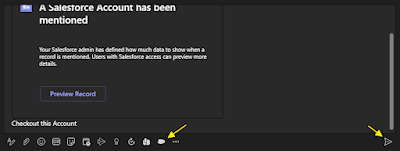
4. Type your message in the chat window then hit the “enter” key or Send icon


5. If the receivers have the Salesforce license and Salesforce app installed in Microsoft Teams, the users will be able to Preview the record sent, click “View in Salesforce” to open the record in Salesforce.com

6. The same action can be performed in the Teams channel under Posts, click “New conversation” button, and you will see the same set of icons as above screenshot


Adding Salesforce record as a tab

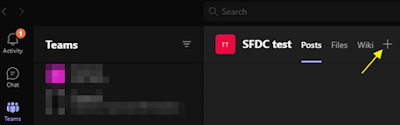
1. From a Chat or Teams channel, click + icon on the top 


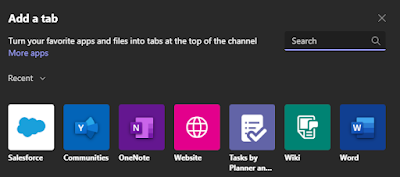
2. Click the Salesforce icon, if you do not see the Salesforce icon, type Salesforce in the search box at the upper right corner


3. Search for a record, the system will show the recent records that you access in Salesforce

4. Select the record and click the Save button

5. Click the arrow next to the new tab added, you can rename or remove the tab added

6. The selected record added as a tab in a Chat or Teams Channel


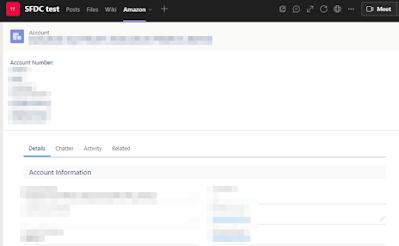
7. You will be able to edit the record, do Chatter posts, view Activity, see the Related records, click the link to open the related record Salesforce.com


Reference:
Thursday, November 11, 2021

Salesforce: Account Team List View and Opportunity Team List View

Many years back, we wrote a blog on options in reports to show the account team and in the opportunity team, the similar options are available in List View too, let's check out:

In the Account report type, we have the option to show:
  1. All accounts
  2. My accounts
  3. My accounts team's accounts
  4. My accounts team and my accounts
  5. My team's accounts

In Account list view:
  1. All accounts
  2. My accounts
  3. My accounts teams
The first two options are clear, show all accounts or my accounts.
"My accounts teams", is similar to "My accounts team's accounts" in the report type, where the result ONLY accounts where you are in the Account Team.


The same applies in the Opportunity Team list view too, in the Opportunity report type, we have:
  1. All opportunities
  2. My opportunities
  3. My team-selling opportunities
  4. My team-selling and my opportunities 
  5. My team's opportunities
  6. My team-selling and their opportunities


In the Opportunity List view:
  1. All opportunities
  2. My opportunities
  3. My opportunities teams
  4. My team's opportunities
The first two options are clear, show all accounts or my accounts.
"My opportunities teams" -- all opportunities where you are in the Opportunity Team, this is similar to "My team-selling opportunities" in the report.

"My team's opportunities" -- all opportunities owned by me and owned by users below my role hierarchy, including all that report to my direct reports.


Reference:


Page-level ad