Pages

Monday, December 12, 2022

Salesforce: Using Formula Field

The formula field is one of the best features of the Salesforce platform for admin (and developer). Despite the limitation and restrictions, it still serves a lot of benefits. 

Some restrictions:

  • You can’t use long text area, encrypted, or description fields in formulas.
  • The value of a field can’t depend on another formula that references it.
  • You can’t delete fields referenced in formulas. Remove the field from the formula before deleting it.


But, where the formula field can and cannot be used?

Page Layout - Yes, including dynamic form, search layout, and compact layout. But the formula field is not searchable.

Report - Yes, including use as a filter

List View - Yes, including use as a filter

Validation Rule - Yes, except that you can't set the error message location at a formula field

Approval Process - Yes

Sharing Rule - No, the criteria based sharing rule does not support by formula field, you can vote on the idea here, here, and here; here is the original idea but has been marked as partially delivered although the item delivered has nothing to do with sharing rule.

Email TemplateYes

FlowYes

SOQL - Yes


If there are other places we can or cannot use formula fields, feels free to comment below this blog. 


Reference:

Monday, November 28, 2022

Salesforce: Email-to-Case and EmailMessage object

Two years back, we shared about the EmailMessage object here, this blog will share the relationship between how the email is stored in the EmailMessage with email-to-case.

This blog is written for email header-based threading, not the older string-based threading, check out the difference here.

Email Header

Outlook Email Properties

There are 3 main pieces of information from the email header that determine email header-based threading.
  1. Message-ID: this is a unique Id from each email sent.
  2. In-Reply-To: when someone reply, reply all, or forward email, this will be the Message-ID of the email replied or forwarded -- this will be not available for a brand new email
  3. References: this will contain ALL Message-ID in the past related to the email, because of the the email is replied or forwarded -- this will be not available for a brand new email
Email header example in Outlook:
Message-ID:
 <SJ0PR04MB82591BAF72F77B70A462298BA1139@SJ0PR04MB8259.namprd04.prod.outlook.com>
In-Reply-To:
 <BYAPR04MB4423787D7E4151F21F0F7A0AAF109@BYAPR04MB4423.namprd04.prod.outlook.com>
References:
 <BN8PR04MB58573540EF22FB7F96C770C1BA0D9@BN8PR04MB5857.namprd04.prod.outlook.com>
 <BN8PR04MB5857B720DAEE1DD7536615ADBA0C9@BN8PR04MB5857.namprd04.prod.outlook.com>
 <DM8PR04MB8007D5BDCFA47E407444341FA50F9@DM8PR04MB8007.namprd04.prod.outlook.com>
 <DM6PR04MB64935C0BAD0CE8B45F2231DDDB0F9@DM6PR04MB6493.namprd04.prod.outlook.com>
 <BN8PR04MB585790F2E1E8B2EBC6B05310BA0F9@BN8PR04MB5857.namprd04.prod.outlook.com>
 <DM6PR04MB6493374129A5668B5722CFC0DB0E9@DM6PR04MB6493.namprd04.prod.outlook.com>
 <BYAPR04MB4423787D7E4151F21F0F7A0AAF109@BYAPR04MB4423.namprd04.prod.outlook.com>

Another sample from Gmail:
Message-ID:
<CAEA+Pe0BKtiu8O8TRC0vQC2gu+OmbR6PrEdS93+-0yOxhGzEVQ@mail.gmail.com>
In-Reply-To:<CAG1Mi6WPzXh_B3Aw5VcF8mJG1F7AjdqOZHw=Lc+p0+oiH4O2Aw@mail.gmail.com>
References:
<CADeEcsvRNwQxAP1qE4gqKeUGtqMLNR3qu+qcD4Q1p4K-CJKzqg@mail.gmail.com> <CAG1Mi6WPzXh_B3Aw5VcF8mJG1F7AjdqOZHw=Lc+p0+oiH4O2Aw@mail.gmail.com>


ThreadIdentifier

ThreadIdentifier is a field in the EmailMessage object that will be auto-populated when sending emails or receiving emails to Salesforce, including manually logged emails.

For email-to-case, ThreadIdentifier is the Message-ID of the 1st email sent by a user as a brand new email (not reply/forward), and that email possibility not be sent to the email-to-case email address alias yet.

Example:
- A send email to B [Message-ID = A123]
- B replies A, and also cc to email-to-case email address [Message-ID = B888]
ThreadIdentifier in this scenario is A123, even though A did not send the email to the email-to-case email address. 


Email-to-Case Threading

As per this article, there are 2 main points that determine if an email sent to email-to-case alias will create a new case or be attached to an existing case:

  1. Looks for "MessageIdentifier" in the Salesforce EmailMessage object to match with the "In-Reply-To" email address in the email header, if not found, continue to (2) 
  2. Looks for "MessageIdentifier" in the Salesforce EmailMessage object to match with the "Reference" email address in the email header 

If found, link that email to the case by looking at ParentId (which is Case Id) from the matching record of the EmailMessage object. So, the matching here is not based on ThreadIdentifier. 

First scenario:
1. A create a brand new email and send it to B and C
2. B reply all and forward the email to email_alias@domain.com
3. C reply all and forward the email to email_alias@domain.com

The above scenario will create 2 cases:

  • with the same ThreadIdentifier, but MessageIdentifier generated from email B (2) and email C (3) is different
  • all references in the following emails will not contain the original email A (1) in their reference, so these 2 cases will be continuously run independently.


Second scenario:
1. A creates a brand new email, sends it to B, also to email_alias_1@domain.com and email_alias_2@domain.com 
2. B reply all

What will happen from the above scenario:

  • The first email from A will generate 2 cases with the same MessageIdentifier
  • When B hit reply all, there are 2 streams of email reaching Salesforce, and both looking for the same MessageIdentifier, the system will simply attach the email to any of these 2 cases, but from my trail, these 2 streams' of email are attached to the last cases created. so there will be 3 emails in the last case created


Third scenario:
1. A creates a brand new email and sends it to B, also to email_alias_1@domain.com  
2. B reply all and add email_alias_2@domain.com

What will happen from the above scenario:

  • The first email from A will generate 1 new case
  • When B hit reply all and adds new email alias linked to email-to-case, the "In-Reply-To:" in the second email will point to the Message-ID of the first email which is the MessageIdentifier for the case created in the first email, so there will be no new case created here


Sample querySelect ParentId, CreatedDate, Status, Subject, FromAddress, ToAddress, CcAddress, MessageIdentifier, ThreadIdentifier, Id, ReplyToEmailMessageId from EmailMessage where CreatedDate = Today


Reference:


Saturday, November 26, 2022

Salesforce: Send List Email (3)

his is to continue Salesforce: Send List Email and Salesforce: Send List Email (2) written months ago. 

You can send mass email to a maximum of 5,000 external email addresses per day per licensed Salesforce org based on Greenwich Mean Time (GMT), and sending email from list view is considered as mass email. For example, if you have johndoe@example.com in your email 10 times that counts as 10 against the limit.

You can send mass emails only to contacts, person accounts, leads, and your internal users. 

You can send an unlimited amount of emails through the Salesforce UI to your internal users, which include portal users.

To mass email from the list view:

  1. Select/create the list view
  2. Select the contacts/leads checkbox
  3. Click the "Send List Email" button, if you do not see the button, make sure the button is added to the list view and you have "Allow sending of List Emails" permission, see this blog for detail.


In the Send List Email window

  • You will see the balance of send email limit remaining
  • You can select "From" based on your setup, including Organization-Wide Email Addresses
  • You can use an email template, merge fields, and attach files
  • You can Send Later and Save as Draft
  • Each recipient will only see their name as the recipient, not the whole recipient's name

Tips: to see your draft email, looks for "List Email" from the 9-dots icon


Reference:


Wednesday, October 26, 2022

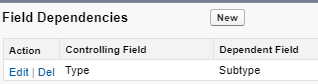
Salesforce: Field Dependency across Record Type

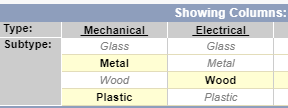
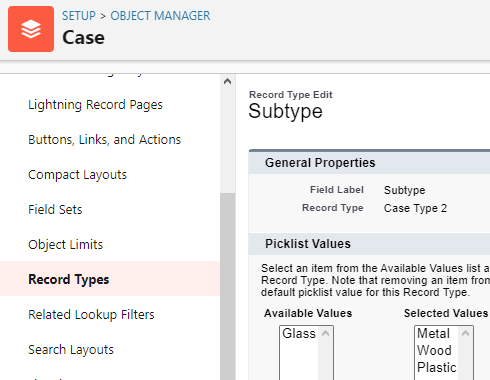
This is to continue the previous blog Record Type on Creation, the scenario here: for the same user, the list of values for a picklist field configured as a dependent field should be different across record types.

Steps:

1. Set the field as a dependent field


2. Include ALL values of the dependent field in the controlling field, not only for a specific record type


3. Configure the field values available for each record type


4. Done


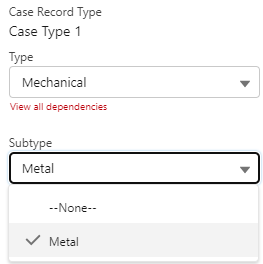
Now, you should see different available values for each record type for the same field.


Same user, same field, different record type, and different list of values.


Salesforce: Record Type on Creation

Background: a user does not see the Record Type prompt when creating a new record.

This is probably caused by:

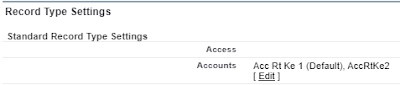
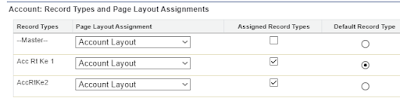
1. The user profile is not enabled for certain record types of an object

To check this, go to the user profile, not to the object.

Looks for Record Type Settings


If you have Enhanced Profile User Interface enabled, look for Objects Settings, then Record Types and Page Layout Assignments


Additionally, you also can enable record type for certain users with permission set, see this blog.

Note: even if a user can't create a record with a specific record type, because it is not enabled, the user will be still able to access the record, as that is controlled by record visibility.

This scenario (no record type prompt) only happened when there is only 1 record type enabled for the user.

2. The user sets Default Record Type

Go to User Setting, and looks for Set Default Record Type under Display & Layout.

Note: this is not Advanced User Details and is not configurable by the admin, so the admin needs to log in as the user to check.


Reference:

Friday, October 21, 2022

Salesforce Lightning URL Hack

Scenario: Universal Inc would like to increase staff productivity with fewer clicks when creating a Case from the Account page, users still need to enter other fields, but a few fields have been populated by default:

  • Skip record type prompt
  • Type = Other

Solution: create a custom button and add it to the page layout. Here is the URL:

/lightning/o/Case/new?defaultFieldValues=RecordTypeId=0125g0000022dlQAAQ,AccountId={!Account.Id}&Type=Other


Reference:

Page-level ad